

A service van carries a technician, their stock and their tools, so when it misses an oil change or a lift gate stops working, the day’s jobs go with it. Our vehicle maintenance log template keeps each van’s service history, its next service and its daily walk-around checks in one workbook, so you can see what is due before a van is stuck in the yard.
Download the vehicle maintenance log template. It’s a plain .xlsx file with no macros and no sign-up. Swap the sample vans for your own, and the miles left, days left, open defects and cost per mile recalculate.
Video walkthrough
This short captioned walkthrough goes from a Service Log row to each van’s countdown, then the daily inspections and the Dashboard counts, and ends on this page’s address.
Who this log is for
We built it for trade businesses that run a small fleet of work vehicles, such as a plumbing or electrical company with cargo vans and ladder racks, plus maybe a box truck with a lift gate. It’s meant to be kept by whoever books the oil changes, usually the office manager or a fleet lead.
Each van has an assigned tech, and two things can make it due for service: the miles it covers and the time since its last service. A van that sits in the yard for a month still needs an oil change once enough days have passed, and a van on long routes hits its mileage limit well before the calendar does.
The log answers four questions:
- Which vans are overdue for service, and which are coming due?
- What has been done to each van, at what odometer reading, and what did it cost?
- Which daily inspections found a problem that still isn’t fixed?
- What is each van costing per mile?
What’s in the workbook
There are five sheets, in this order:
- Instructions covers setup, the color legend, the limitations, and a note that every formula, layout choice and sample figure was written from scratch for this file.
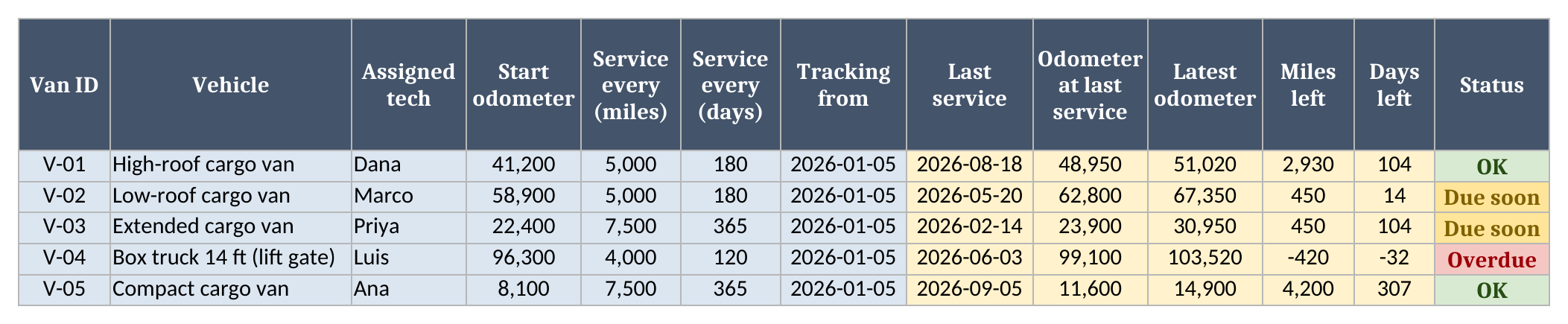
- Vans is the register, with one row per vehicle. You type the Van ID, vehicle, assigned tech, the odometer on the day you start tracking it, its service interval in miles and in days, and that start date. The sheet works out Last service, Odometer at last service, Latest odometer, Miles left, Days left, Status, Inspections with open defects, Maintenance cost, Cost per mile and a Row check.
- Service Log gets one row per job: date, Van ID, work type (Service, Repair, Tires or Other), odometer, work done and the cost from the invoice.
- Inspections gets one row per daily walk-around: date, Van ID, driver, odometer, and Pass, Fail or N/A for brakes, tires, lights, fluids, wipers and glass, the ladder rack and straps, and the lift gate. Add a defect status and a note when something fails.
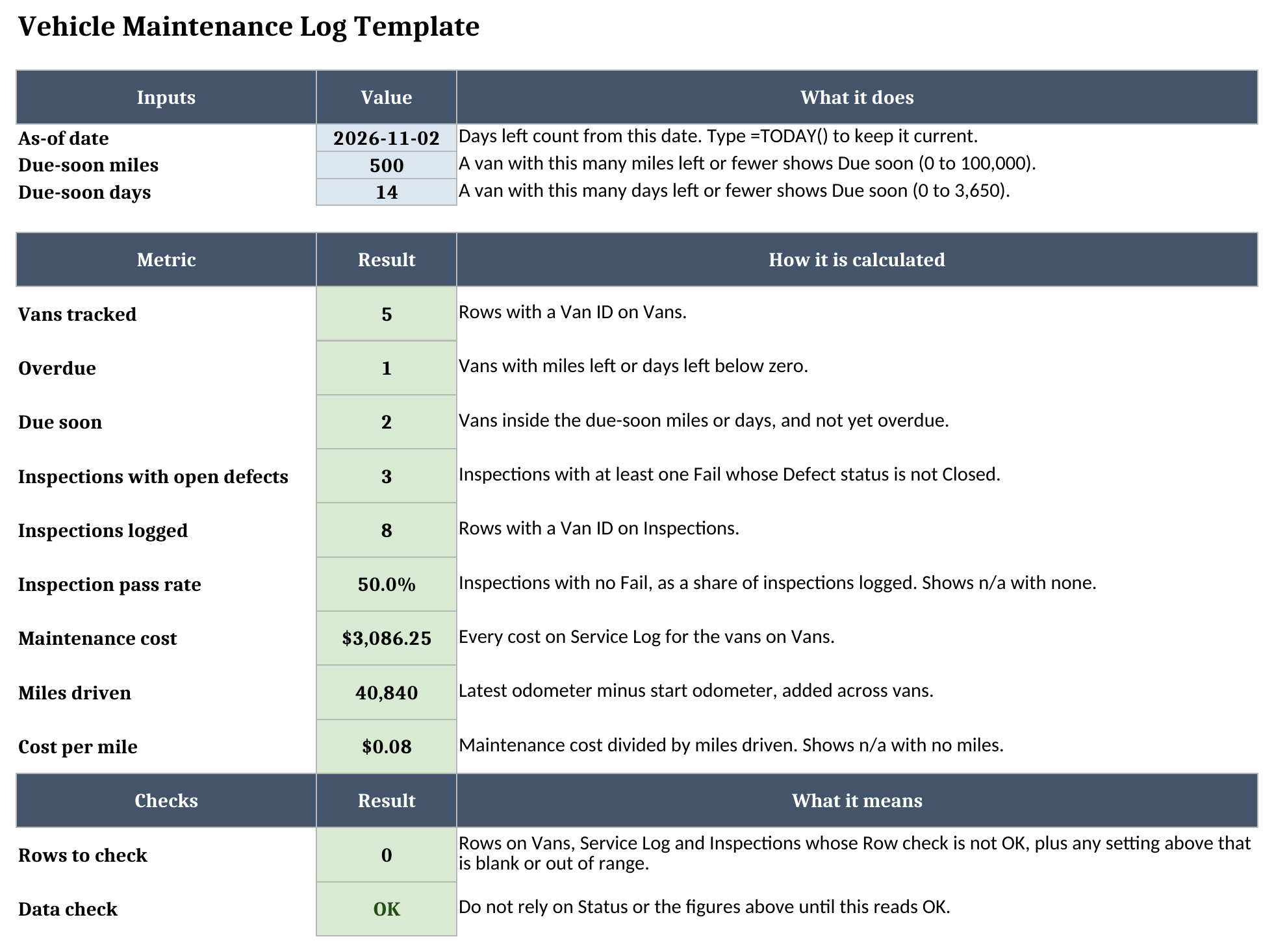
- Dashboard holds the as-of date and the two due-soon thresholds, the fleet totals, and a Data check.
Blue cells are for typing, yellow cells calculate, and green cells hold the headline results.
How to set it up
- If your spreadsheet app opens the file read-only, turn on editing so the formulas calculate.
- On Dashboard, set the as-of date and the due-soon thresholds. The sample uses 500 miles and 14 days. The as-of date is typed in so the sample numbers stay put; once you start using the log for real, type
=TODAY()in that cell. - On Vans, replace the sample rows with your vehicles. Keep each Van ID unique, because the other sheets use it as the key. Unit numbers, plate numbers and fleet codes all work.
- For each van, record the odometer on the day you start tracking it and enter that date in Tracking from. Older history before that date stays out of the log, so you don’t have to dig up years of receipts to get started.
- Set each van’s service interval in miles and in days. Use the schedule from the vehicle’s maintenance guide or your shop’s own policy. The sample intervals are there to show how the sheet works, not as advice.
- On Service Log and Inspections, clear the sample rows and start adding your own. The Van ID column is a dropdown that reads your live Vans list.
- Fix every Row check that isn’t OK, then confirm Data check on Dashboard reads OK.
Miles or days, whichever runs out first
You never type a due date in this file. You log the work, and the Vans sheet counts down two ways at once.
Miles left is the service interval in miles minus the miles driven since the last Service row. The sheet takes the odometer on that Service row and subtracts it from the highest reading it has for the van, on either Service Log or Inspections, which is why the daily walk-around keeps the mileage current. Days left is the interval in days minus the days between the last Service row and the as-of date. If a van has no Service row yet, both counts start from its Tracking from date and its start odometer.
Status reads Overdue when either count drops below zero, Due soon when either one is inside its threshold, and OK otherwise.
Only rows marked Service reset the counts, because a repair fixes what broke and leaves the scheduled service undone. Take the box truck, V-04. Its last Service row is dated 2026-06-03 at 99,100 miles. It had a lift gate hose replaced on 2026-07-22 at 101,050 miles, and that row added cost and history without restarting anything. Its latest reading, from the 2026-10-30 inspection, is 103,520. On a 4,000-mile, 120-day interval, that leaves -420 miles and -32 days, so it reads Overdue on both counts.
Tires work the same way. V-02 got four new tires on 2026-09-30 at 66,400 miles, and it still reads Due soon: 450 miles and 14 days left since its last Service row.
The extended van, V-03, has 104 days left but only 450 miles, so the miles count makes it Due soon.
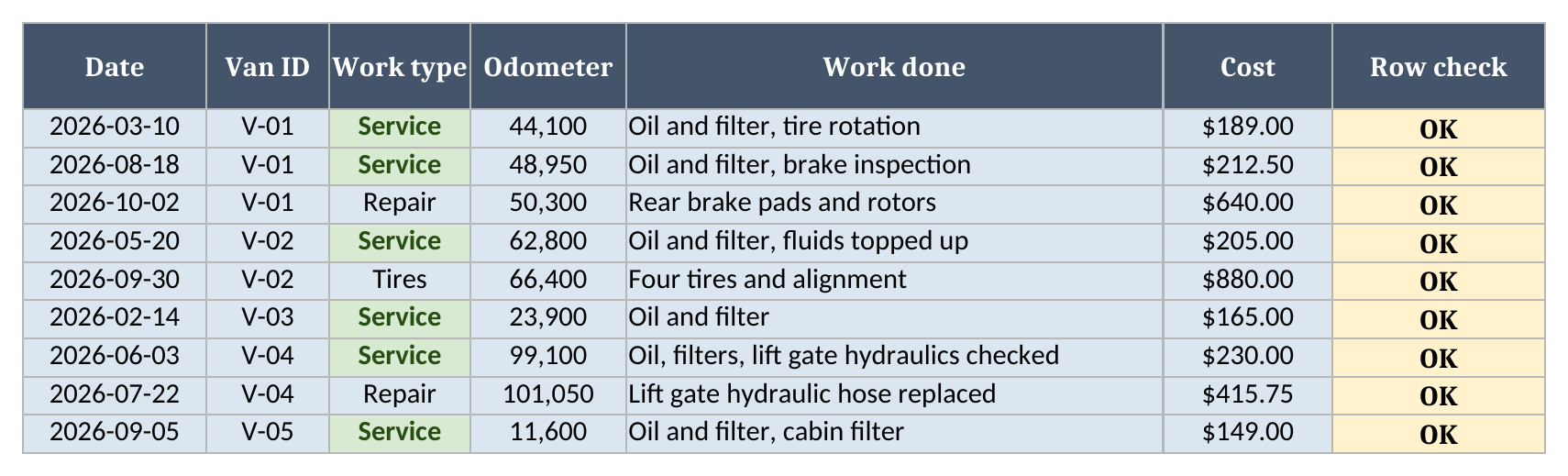
When V-04 comes in, add a Service row with the date and the current odometer. Its miles left goes back to the full 4,000, days left starts over from that date, and the Dashboard’s overdue count drops by one.
How daily inspections track defects
Inspections is a record of the walk-around a driver does before leaving the yard. Each item gets Pass, Fail or N/A. Lift gate is N/A on the vans that don’t have one. The Fails column counts the failed items on that row.
Any Fail opens a defect. The inspection counts toward Inspections with open defects on Vans and on Dashboard until someone changes its Defect status to Closed. If an item fails and Defect status is left blank, Row check reads Set status, so a failed item can’t be logged without a status. The count is per inspection, not per item: V-04’s 2026-10-30 walk-around failed 2 items, brakes and the lift gate, and counts as one open inspection.
In the sample, V-02’s tire problem from 2026-10-28 is Closed, so it no longer counts. Three inspections are still open: a tail light on V-03, a windshield chip on V-01, and V-04’s brakes and lift gate.
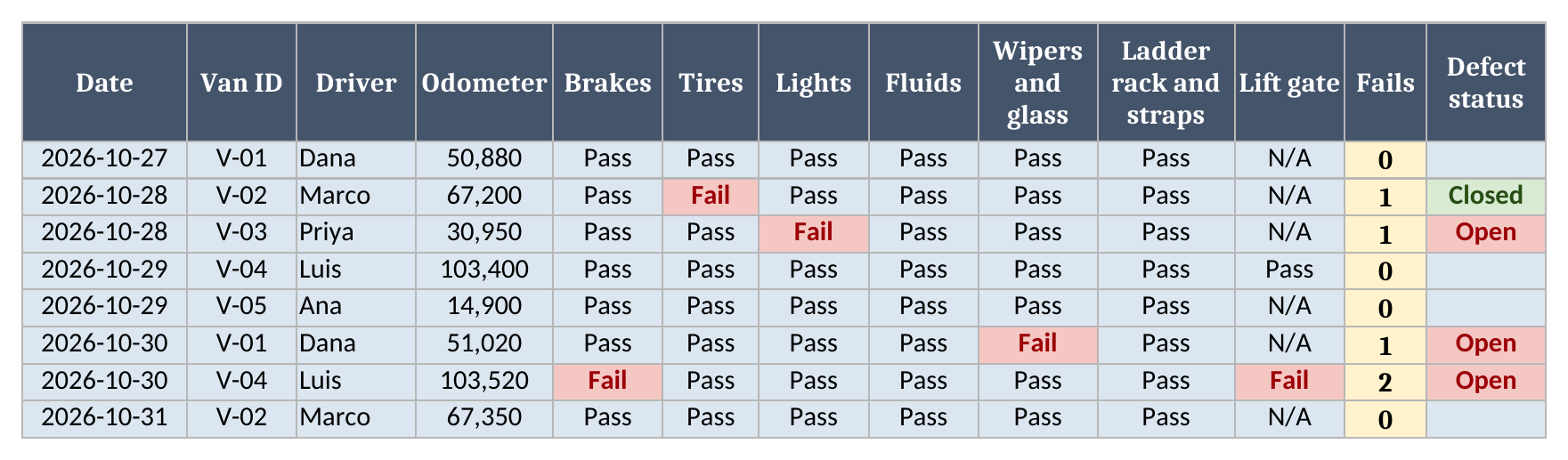
The inspection odometer also feeds Latest odometer, so a van that gets a daily walk-around has current miles left even when it hasn’t been near a shop in months.
The sheet records what was checked and what was found; it is not a regulatory inspection form. If your vehicles fall under inspection rules, check which ones apply and what records they require. Our glossary entry on field inspection forms covers how inspection forms work when technicians fill them in on a mobile app.
Worked example from the sample data
The sample fleet has 5 vans and 8 inspections, with an as-of date of 2026-11-02. All of it is made up. Here’s where each van stands:
| Van | Miles left | Days left | Status | Open defects |
|---|---|---|---|---|
| V-01 High-roof cargo van | 2,930 | 104 | OK | 1 |
| V-02 Low-roof cargo van | 450 | 14 | Due soon | 0 |
| V-03 Extended cargo van | 450 | 104 | Due soon | 1 |
| V-04 Box truck 14 ft | -420 | -32 | Overdue | 1 |
| V-05 Compact cargo van | 4,200 | 307 | OK | 0 |
V-01 reads OK for service, but its windshield chip is still open, so check Inspections as well as Status before a van goes out.
And here’s what the Dashboard shows:
| Metric | Result |
|---|---|
| Vans tracked | 5 |
| Overdue | 1 |
| Due soon | 2 |
| Inspections with open defects | 3 |
| Inspections logged | 8 |
| Inspection pass rate | 50.0% |
| Maintenance cost | $3,086.25 |
| Miles driven | 40,840 |
| Cost per mile | $0.08 |
Miles driven is each van’s latest odometer minus its start odometer, added up across the fleet. Maintenance cost is every cost on Service Log, so repairs and tires count here even though they don’t reset the interval. Cost per mile divides one by the other. V-04 runs at $0.09 a mile, $645.75 over 103,520 minus 96,300 miles, which is above the fleet figure. These are sample figures, and a real van’s cost per mile depends on its age, its routes and what it carries.
How it differs from the equipment maintenance log
Our equipment maintenance log template is for equipment that stays put or gets serviced on a calendar: rooftop units, pumps, compressors, generators. Each asset there has a single interval in days. This vehicle log adds the odometer, a second interval in miles, and a daily inspection sheet, because a van’s wear depends on how far it goes as well as how long it has been. If you look after both, keep them in separate files. The equipment log is the one for anything without an odometer.
The rest of the set is on the free field service templates page.
Limitations to know before relying on it
- Every odometer reading is typed in. The sheet can’t read a van’s mileage on its own.
- A row with a blank, shared or unlisted Van ID, a missing or out-of-range value, a date before the van’s Tracking from date, or an odometer lower than an earlier reading shows a warning in Row check. Status on Vans and every Dashboard figure except Vans tracked and Inspections logged then read Check data until Data check reads OK. A blank cost isn’t a zero, so type 0 for a job with no charge.
- Each van has one interval in miles and one in days. Separate schedules for oil, brakes, tires or the lift gate aren’t modeled; log those jobs as Repair, Tires or Other.
- Costs are what you type from the invoice. Nothing is estimated or repriced.
- The log holds up to 100 vans and 500 rows each on Service Log and Inspections. Formulas and dropdowns stop at row 101 on Vans and row 501 on the other two.
- It’s one file. It won’t send reminders, create work orders or sync between drivers.
Most fleets move off a spreadsheet for one of those reasons. If you want odometer readings to arrive on their own, our glossary entry on fleet telematics explains how GPS tracking and vehicle diagnostics feed that data into dispatch. When several dispatchers need live van status at the same time, our guide to software for fleet service companies covers what to look for.
Until then, grab the vehicle maintenance log template, add your vans, and log the next service to watch the counts reset.