

Equipment service history tends to end up in three places: a clipboard on the unit, a folder in the office, and one technician’s memory. Our equipment maintenance log template pulls that into a single workbook, with one list of assets and one running log of visits, so you can look up when a unit is due next.
Download the equipment maintenance log template. It’s a plain .xlsx with no macros and no sign-up. Open it in Excel or import it into Google Sheets, swap the sample equipment for yours, and the due dates, overdue flags and cost rollups recalculate.
Video walkthrough
This short captioned walkthrough shows how the sheets connect, from logging a visit to reading the Dashboard.
Who this log is for
We built this for field service teams and in-house maintenance crews who have outgrown paper but don’t need a full system yet. Think of a contractor looking after a customer’s rooftop units and pumps, a facilities lead with a mixed set of equipment, or an office manager who types up technicians’ notes at the end of the day.
It answers four questions:
- What equipment do we look after, and where is it?
- What was done to each asset, when, and by whom?
- What is overdue, and what is coming due?
- Roughly what has each asset cost us at today’s rates?
The sample covers service equipment across several trades. If you mainly need a place to spec equipment or a checklist for the visit itself, see how this differs from our other templates further down.
What’s in the workbook
There are five sheets, in this order:
- Instructions covers setup, the color legend, Google Sheets import, the limitations, and a disclosure that the formulas, layout and sample figures were written from scratch for this file.
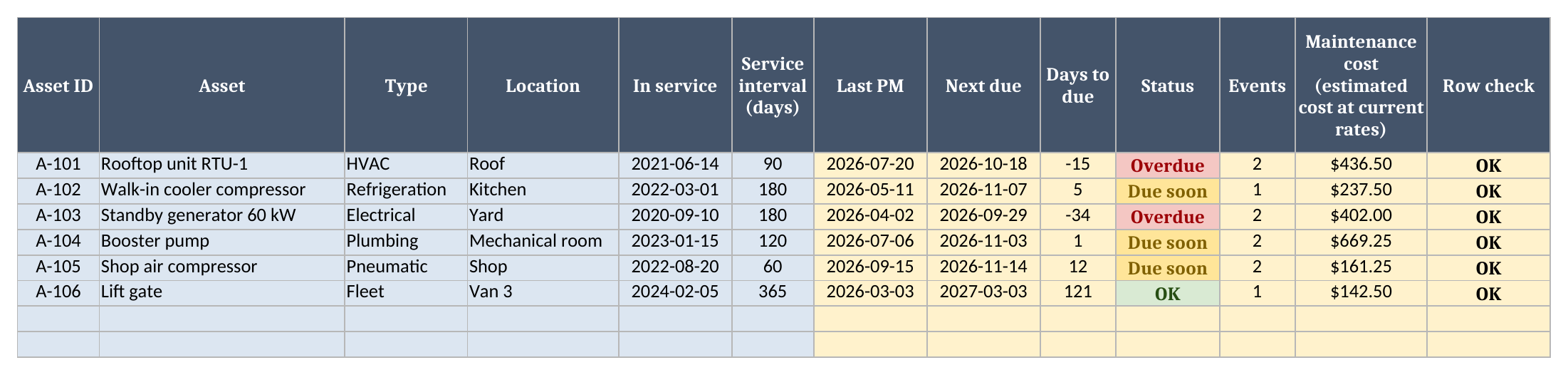
- Assets is the register, with one row per asset. You enter the ID, name, type, location, in-service date and service interval in days. The sheet works out Last PM, Next due, Days to due, Status, Events, Maintenance cost and a Row check.
- Service Log has one row per visit: date, asset ID, work type, technician, work done, part, quantity and labor hours. Parts cost, labor cost, the total and a Row check are calculated.
- Parts is your catalog of part numbers, descriptions and unit costs.
- Dashboard holds the three settings (as-of date, due-soon window, labor rate), the rollups and a Data check.
Blue cells are for typing, yellow cells calculate, and green cells are the headline results.
How to set it up
- If Excel opens the file in Protected View, click Enable Editing so the formulas calculate.
- On Dashboard, set the as-of date, the due-soon window and your labor rate. The sample as-of date is typed in so the sample numbers stay put. When you start using the log for real, type
=TODAY()in that cell. - On Assets, replace the sample rows with your equipment. Keep each Asset ID unique, because Service Log uses it as the key. Your own ID format works fine: tag numbers, serial numbers, whatever you already use.
- On Parts, list what you stock with its current unit cost.
- On Service Log, clear the sample visits and start adding your own. The Asset ID and Part # columns are dropdowns that read your live Assets and Parts lists.
- Set the service interval for each asset based on the manufacturer’s recommendation or your own schedule. The sample intervals are illustrations, not recommendations.
- Fix every Row check that is not OK, then confirm Data check on Dashboard reads OK.
How a PM visit moves the due date
You never type a due date in this file: you log a visit, and the register works it out.
Last PM is the most recent date on Service Log where the asset ID matches and the work type is PM. If an asset has no PM logged yet, it falls back to the in-service date. Next due is Last PM plus the service interval. Days to due counts from the as-of date, and Status reads Overdue, Due soon or OK.
Take the rooftop unit, A-101. Its last PM was on 2026-07-20 and its interval is 90 days, so it came due on 2026-10-18. Against the sample as-of date of 2026-11-02 that puts it at -15 days, which reads Overdue. Add a PM row for A-101 dated 2026-11-01 and Next due jumps to 2027-01-30, the status clears, and the Dashboard’s overdue count drops by one.
Only PM rows do this, on purpose. A repair doesn’t mean the scheduled work got done. A-101 had a contactor replaced on 2026-10-14 and still shows as overdue. The generator, A-103, is a clearer case: it had an inspection on 2026-09-28, one day before its PM came due, and it now sits at -34 days. Repair and Inspection rows add history and cost, but they leave the due date alone.
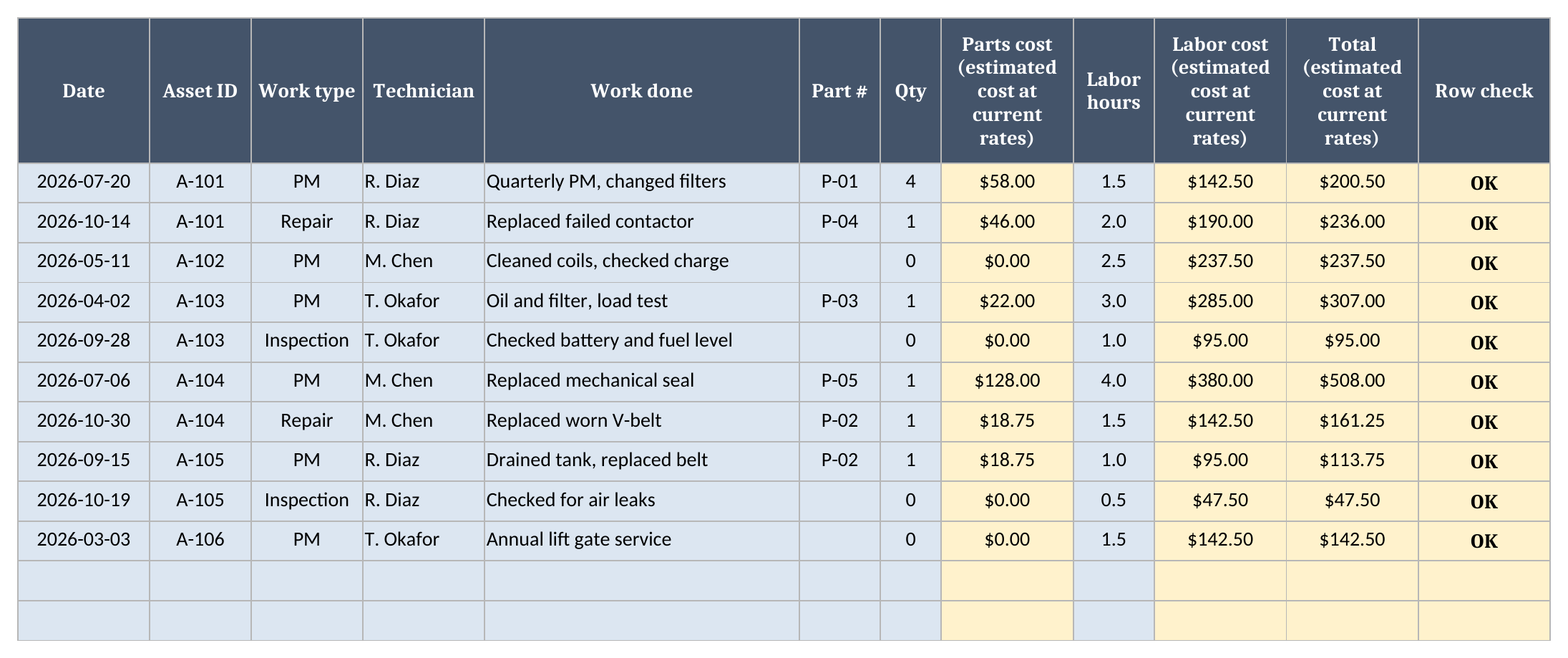
There’s one shared log instead of a separate tab per asset. To pull up one asset’s history, filter the Service Log by its ID. That keeps the rollups simple, and adding a new asset doesn’t mean building a new tab.
Why the costs are estimates
Every cost in this workbook is an estimated cost at current rates. It is not a record of what you actually spent.
Parts cost multiplies the quantity by whatever the unit cost on Parts says today. Labor cost multiplies the hours by the single labor rate on Dashboard. So when a filter goes up in price or you raise your rate, every earlier visit reprices too. That’s useful for comparing assets on one consistent basis, and it’s the wrong thing to hand your accountant. The workbook labels these columns as estimates, and so should anything you build from them.
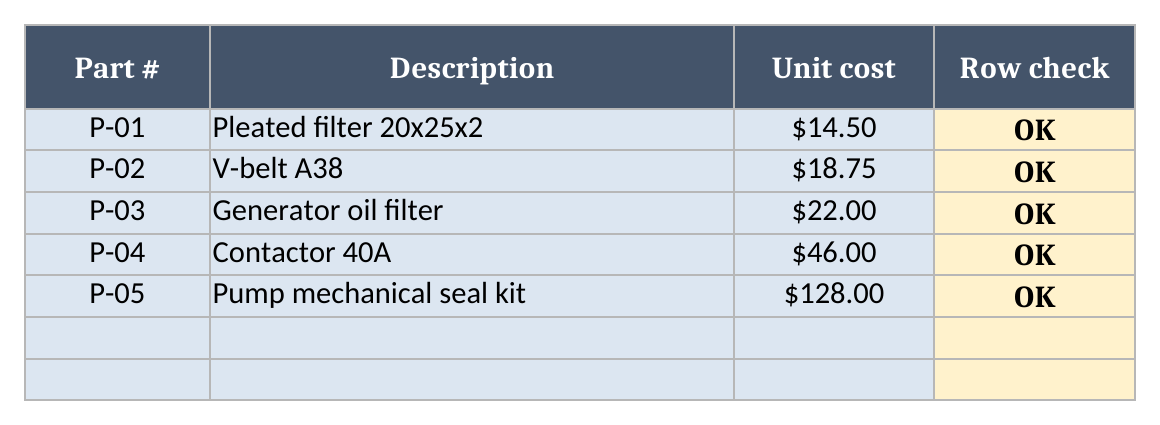
The catalog doesn’t need to be exhaustive. A visit with no part just leaves Part # blank, and the parts cost comes out to zero.
Worked example from the sample data
The sample has 6 assets and 10 visits, with an as-of date of 2026-11-02, a 14-day due-soon window and a labor rate of $95 an hour. All of it is made up. Here’s what the Dashboard shows:
| Metric | Result |
|---|---|
| Assets tracked | 6 |
| Overdue | 2 |
| Due soon | 3 |
| Service events | 10 |
| Parts cost (estimated) | $291.50 |
| Labor cost (estimated) | $1,757.50 |
| Total maintenance cost (estimated) | $2,049.00 |
| Parts share | 14.2% |
| Average cost per event | $204.90 |
And here’s where each asset stands:
| Asset | Next due | Days to due | Status |
|---|---|---|---|
| A-101 Rooftop unit RTU-1 | 2026-10-18 | -15 | Overdue |
| A-102 Walk-in cooler compressor | 2026-11-07 | 5 | Due soon |
| A-103 Standby generator 60 kW | 2026-09-29 | -34 | Overdue |
| A-104 Booster pump | 2026-11-03 | 1 | Due soon |
| A-105 Shop air compressor | 2026-11-14 | 12 | Due soon |
| A-106 Lift gate | 2027-03-03 | 121 | OK |
The booster pump, A-104, shows how a single asset’s cost builds up from its two visits:
| Visit | Parts | Labor | Total |
|---|---|---|---|
| 2026-07-06 PM, mechanical seal, 4.0 hours | $128.00 | $380.00 | $508.00 |
| 2026-10-30 Repair, V-belt, 1.5 hours | $18.75 | $142.50 | $161.25 |
Those two rows add up to the $669.25 in the Maintenance cost column for A-104. Notice that the repair is the newer visit, yet the pump is still due soon, because only the PM on 2026-07-06 counts toward its interval.
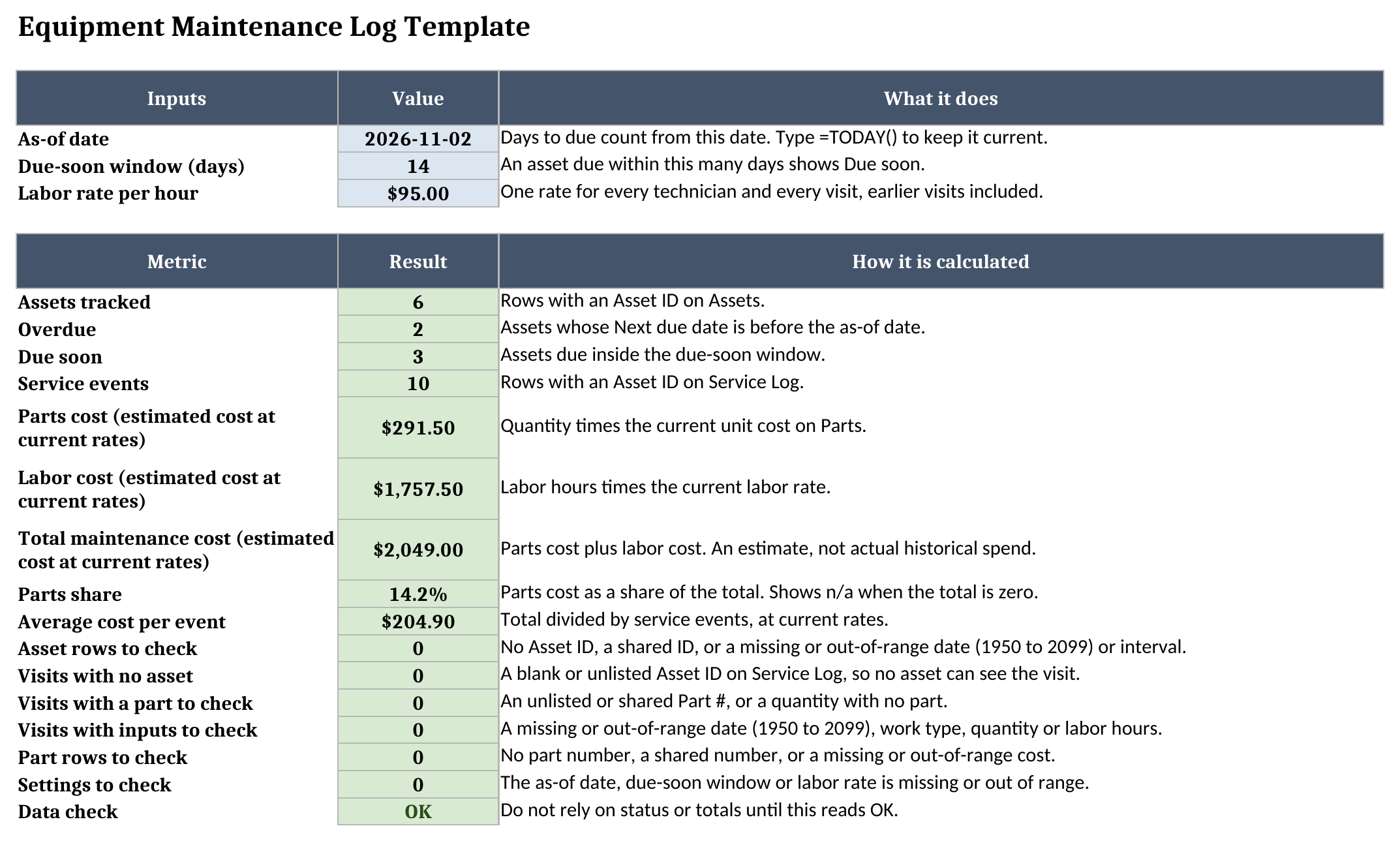
Labor makes up most of the sample total, with parts at 14.2%. Your mix will depend on your equipment and your rates, so treat that as an example of what the sheet reports and not as a benchmark.
How to use this in Google Sheets
You can bring the file into Google Sheets. Import the .xlsx directly:
- Download the workbook from the Excel template link.
- Open Google Sheets.
- Choose File > Import > Upload.
- Select the downloaded file.
- Choose Insert new sheet(s), or create a new spreadsheet from the upload.
- Check Assets and Dashboard after the import.
There are no macros. Formatting can differ between the two, so check the results, dropdowns and colors after import before you rely on it or share it with your team.
How it differs from our other maintenance templates
This log records what happened and tells you what’s due. Our other templates handle different jobs:
- The preventive maintenance checklist covers what a technician does on the visit: the tasks, readings and pass or fail results. Fill that in during the visit, then log the visit here.
- The HVAC equipment schedule template documents HVAC equipment and its specs. This log tracks service on any equipment, not just HVAC.
- The field service work order template is the paperwork for a single job. One completed work order usually becomes one row on Service Log.
You’ll find the rest of the set on the free field service templates page.
Limitations to know before relying on it
- A row with a blank, shared or unlisted ID, or a missing or out-of-range value (dates run from 1950 to 2099), shows a warning in Row check. Status, Overdue, Due soon, Total maintenance cost, Parts share and Average cost per event then read Check data until Data check on Dashboard reads OK. A blank is not a zero, so type 0 for no labor.
- Costs are estimates. They reprice whenever the catalog or labor rate changes, and there’s one labor rate for everyone.
- Intervals are in days only, so PM based on meter readings or runtime hours isn’t modeled.
- Each row holds one part, so a visit with two parts takes two rows. Put the labor hours on just one of them and type 0 on the other, or they’ll count twice. Each row counts as one service event, so that visit adds two to the events count and lowers the average cost per event.
- The log holds up to 200 assets and 500 visits. Formulas, totals and dropdowns stop at row 201 on Assets and row 501 on Service Log.
- It’s one file. It won’t create work orders, send reminders or sync between technicians in the field.
That last point is usually what ends the spreadsheet stage. Once several technicians are logging from the field at the same time, or you need PM work orders to create themselves, read our comparison of CMMS vs field service software to see which kind of system fits.
Until then, grab the equipment maintenance log template, add your equipment, and log your next PM visit to watch the due date move.