

A sequence of operations usually starts life as a few paragraphs in the mechanical specs, then gets retyped into a controls submittal, then gets argued over at commissioning. Our HVAC sequence of operations template keeps the pieces in one workbook: the equipment, the point list with its setpoints and alarm limits, the occupancy schedule, and the written steps for each mode, and it checks each of those against the others.
Download the HVAC sequence of operations template. It’s a plain .xlsx with no macros and no sign-up. Open it in a spreadsheet app, replace the sample building with your own, and the checks and counts recalculate.
Video walkthrough
This short captioned walkthrough goes from the setpoint checks on Points to the hours on Schedule and the steps on Sequences.
Who this template is for
The workbook is for commercial mechanical contractors, controls contractors and facility teams who need a sequence written down in a form someone can check. That might be a project manager pulling together a controls submittal, a service manager documenting how an older building actually runs before a retrofit, or a facility lead who wants the occupied hours and setbacks in one place instead of buried in a front-end graphic.
People look for this under a few names: an HVAC sequence of operations template, an HVAC setpoint schedule template, a BAS point list or a controls sequence sheet. In this workbook they’re one file that answers four questions:
- What equipment is in the building, and what is each unit tagged?
- Which points does each unit have, and what are their occupied and unoccupied setpoints and alarm limits?
- When is each unit occupied, and how many occupied hours does that add up to in a week?
- What should each unit do in each mode, step by step?
The template documents a sequence. It doesn’t design one. The sample setpoints, limits and times only show how the checks behave. They aren’t recommendations, so replace them with the design engineer’s or the owner’s values.
What’s in the workbook
There are six sheets, in this order:
- Instructions covers setup, the import steps for other spreadsheet apps, the limitations, and a note that the formulas, layout and sample values were written from scratch for this file.
- Equipment has one row per tagged unit: tag, equipment, what it serves and its controller. It counts each unit’s points and complete sequence steps and adds up its occupied hours per week from Schedule.
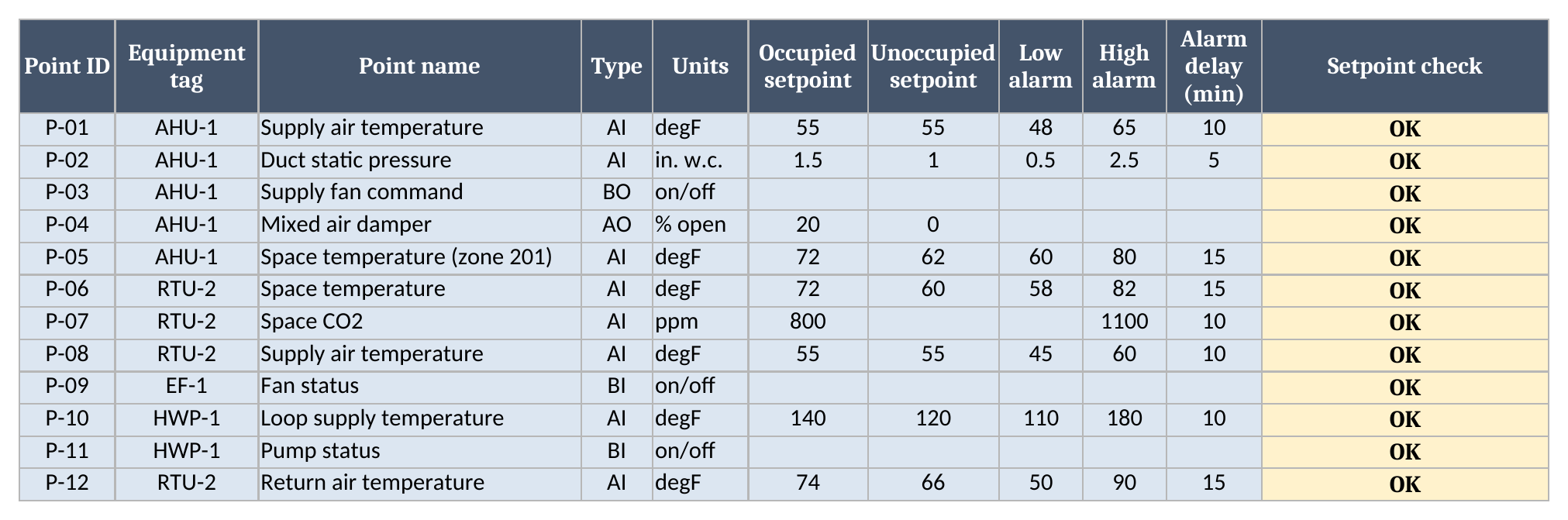
- Points is the point list. Each row has a point ID, equipment tag, point name, type (AI, AO, BI or BO), units, occupied setpoint, unoccupied setpoint, low alarm, high alarm and alarm delay in minutes. A Setpoint check column tests every setpoint against that point’s own limits.
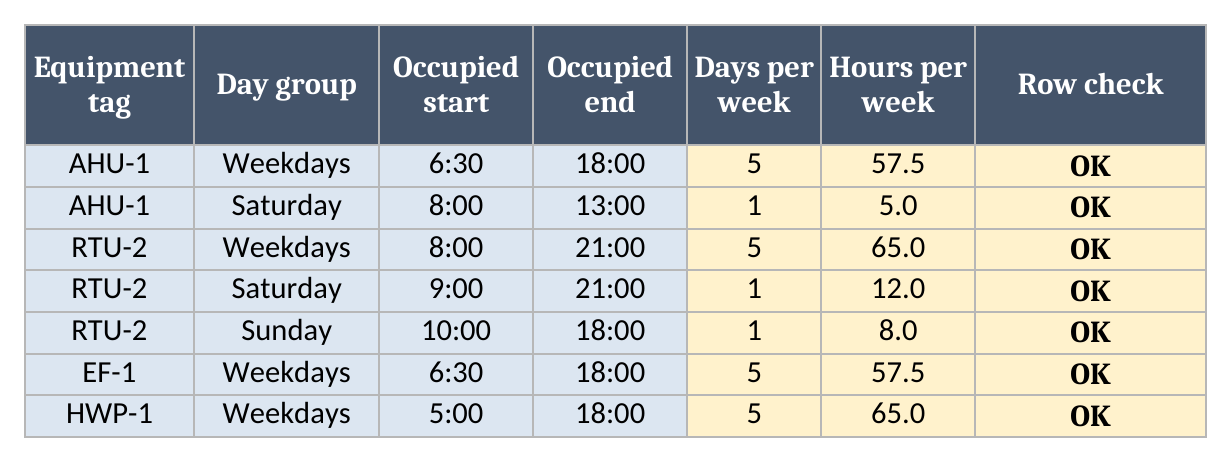
- Schedule holds an occupied start and end time for each tag and day group (Weekdays, Saturday, Sunday or Holiday) and turns them into hours per week.
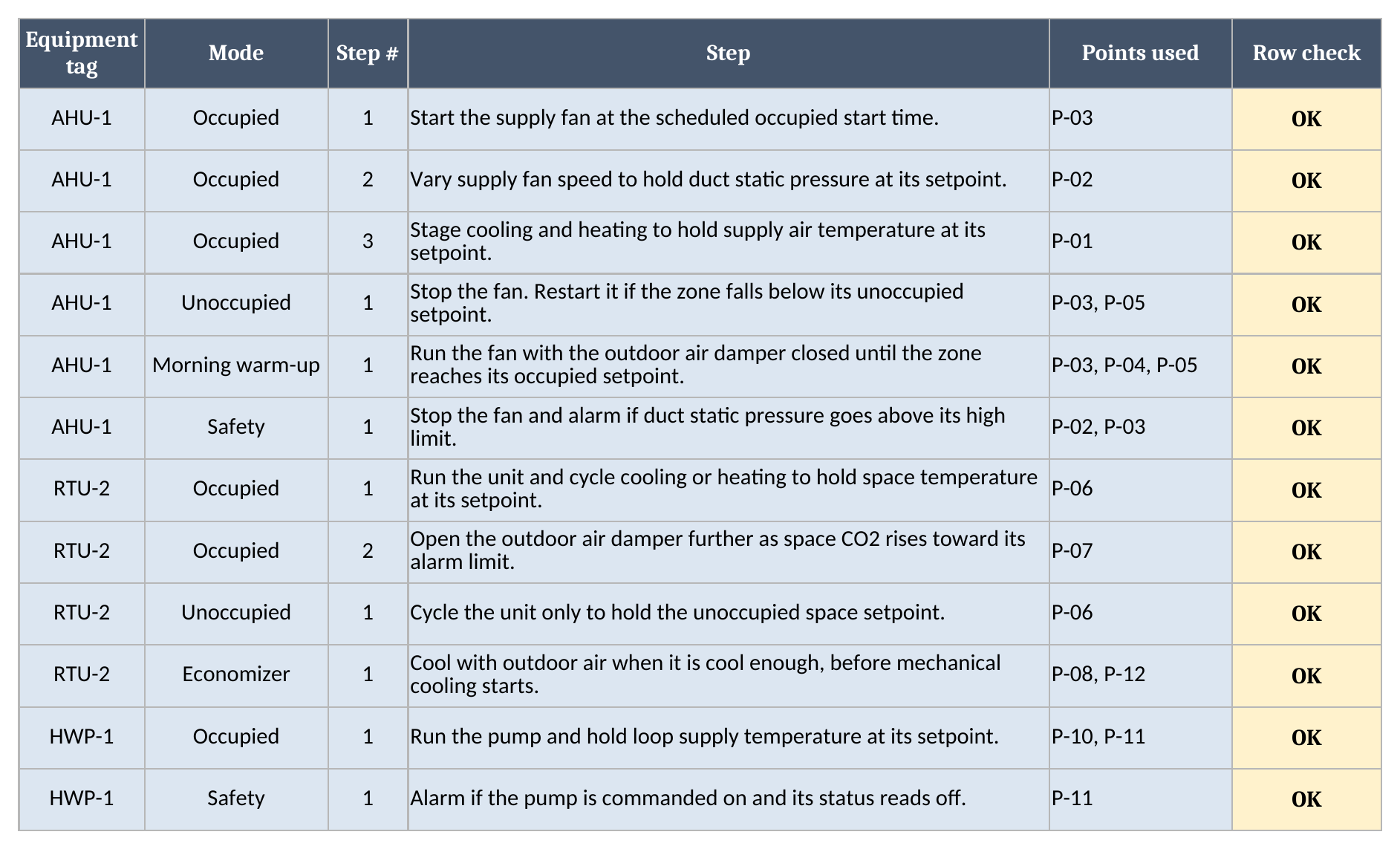
- Sequences holds the numbered steps for each tag and mode: Occupied, Unoccupied, Morning warm-up, Economizer, Safety or Alarm, with the points each step uses.
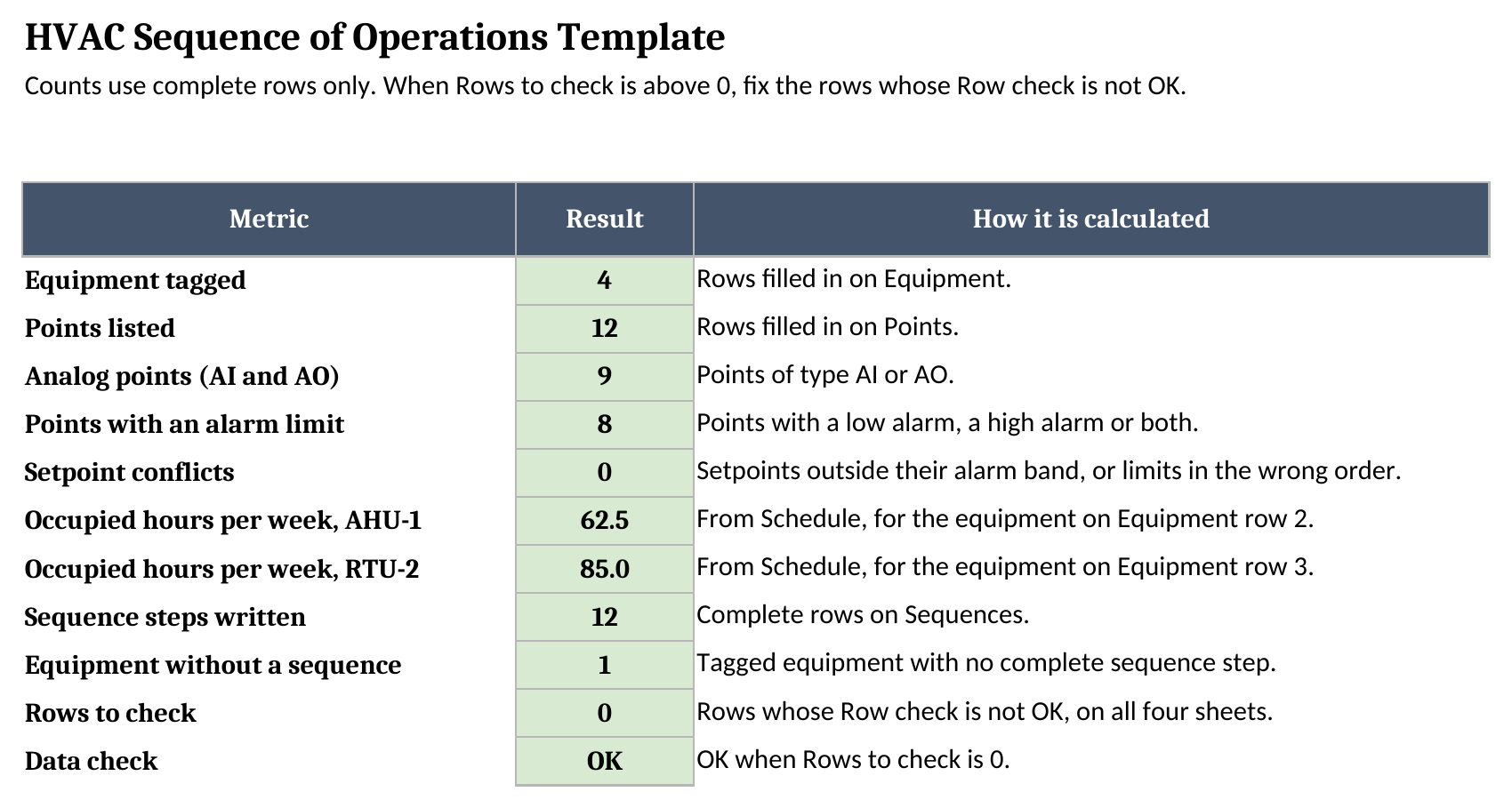
- Dashboard counts equipment, points, analog points, points with an alarm limit, setpoint conflicts, occupied hours for the first two units, steps written and equipment that has no sequence yet.
Blue cells are for typing, yellow cells calculate, and the green cells on Dashboard are the results to read. Every data sheet ends with a Row check column that reads OK or names the first problem on that row.
How to set it up
- If your spreadsheet app opens the file read-only, turn on editing so the formulas calculate.
- On Equipment, replace the sample units with your tags, one row per unit. Each tag has to be unique, because the other three sheets look it up exactly.
- On Points, list each control point. Pick the equipment tag from the dropdown, which reads the live tag list on Equipment, so a new unit shows up as soon as you add it. Type setpoints and limits as plain numbers.
- Leave a setpoint or alarm cell blank when the point doesn’t have one, like a fan status or a damper with no alarm. A blank is skipped, never read as zero.
- On Schedule, enter an occupied start and end time for each tag and day group, as times such as 6:30 and 18:00. One row per tag and day group.
- On Sequences, write the steps for each tag and mode, numbered from 1 within each mode, and name the points each step uses.
- Check that Rows to check on Dashboard reads 0 and Data check reads OK. Until it does, the counts that depend on clean data read “Check data”.
How the setpoint check works
Every point that has setpoints and alarm limits is checked against its own band, row by row, and the result shows in the Setpoint check column:
- “Check limits” means the low alarm is equal to or above the high alarm. Usually that’s two numbers typed in the wrong columns.
- “Setpoint outside alarm band” means the occupied or unoccupied setpoint is below the low alarm or above the high alarm. The point would sit in alarm whenever it reached its own setpoint.
- “OK” means everything typed is consistent. A point with no setpoints, or no alarm limits, also reads OK, since there’s nothing to compare.
The unoccupied setpoint is where this usually goes wrong. Somebody lowers a night setback on a space temperature point to save energy and forgets that the low alarm is still sitting above it. In the sample, the retail rooftop unit has a space low alarm of 58 and an unoccupied setpoint of 60. Change that setback to 55 and the row reads Setpoint outside alarm band, and Setpoint conflicts on Dashboard moves from 0 to 1. That shows up in the workbook before the controls contractor programs the setback, instead of as nuisance alarms after.
Each comparison first tests whether both cells hold a number, so a point with only a high alarm (the CO2 point in the sample) is checked against that high alarm alone. A blank setpoint isn’t treated as zero, and neither is a blank low alarm. Text pasted where a number belongs, such as “fifty-five”, doesn’t slip through as a value. The Row check reads Check inputs instead.
Occupied hours from the schedule
Schedule takes each start and stop time and works out the hours per week. Weekdays count five days, Saturday and Sunday one each, and Holiday zero, so you can record a holiday schedule without it inflating the weekly total. Equipment then adds the complete rows for each tag.
For the sample building, AHU-1 runs 62.5 occupied hours a week and RTU-2 runs 85.0. Push AHU-1’s weekday stop from 18:00 to 20:00 and its total goes up by ten hours, two hours a day for five days. That makes it easy to see what a tenant’s request for later hours does to run time before anyone touches the schedule in the controller.
An end time has to fall after the start time on the same day, and each tag can have only one row per day group. A second Weekdays row for the same unit reads Duplicate row on both rows instead of quietly doubling the hours. Split occupancy periods are out of scope for this version.
Writing the sequence steps
Sequences is plain language on purpose. Each row is one step: the tag, the mode, a step number, what should happen and the points involved. A step reads like “Vary supply fan speed to hold duct static pressure at its setpoint”, which is something a service tech, an owner and the controls contractor can all read and argue about.
A step counts as written when its tag is on Equipment, its mode is one of the six on the list, it has step text, and its step number is a whole number from 1 to 100. A step with no text, or a step number typed as “two”, reads Check inputs and stays out of the count. Equipment then shows how many complete steps each unit has, and Dashboard lists any tagged unit with none.
Worked example: the sample building
The sample is a small commercial building with an air handler for the offices, a rooftop unit for a retail floor, a restroom exhaust fan and a heating hot water pump. Here’s what Dashboard reports for it:
| Metric | Sample result |
|---|---|
| Equipment tagged | 4 |
| Points listed | 12 |
| Analog points (AI and AO) | 9 |
| Points with an alarm limit | 8 |
| Setpoint conflicts | 0 |
| AHU-1 occupied hours per week | 62.5 |
| RTU-2 occupied hours per week | 85.0 |
| Sequence steps written | 12 |
| Equipment without a sequence | 1 |
| Rows to check | 0 |
The one gap is the exhaust fan. It has a status point and a schedule, but nobody has written down what it should do, so it’s the unit without a sequence. Add an Occupied step for it, such as “Run with AHU-1 occupied mode”, and that count drops to 0 while steps written goes up by one.
Using it in other spreadsheet apps
The file is a plain .xlsx, so most spreadsheet apps open it directly. For a browser-based app that imports files instead:
- Download the workbook from the template download link.
- Open your spreadsheet app and choose File > Import > Upload.
- Select the downloaded file and choose to insert it as new sheets.
- Check Dashboard after the import.
The file has no macros. Before you replace the sample data, confirm that Dashboard still matches the worked example above and that the tag, type, day group and mode dropdowns still list their choices. Colors and column widths can shift between apps, so look the sheets over before you share the file.
How it differs from an equipment schedule
Our HVAC equipment schedule template documents what’s specified and installed: capacities, airflow, electrical data and submittal status. This template documents how the same units are meant to run. Use the same tags in both, so AHU-1 on the equipment schedule is AHU-1 on the point list and in the sequence. You’ll find the rest of the set on the free field service templates page.
Limitations to know before relying on it
- It documents a sequence. It doesn’t design one, program a controller or connect to a building automation system.
- It doesn’t recommend setpoints or cite any energy code. The sample values are placeholders.
- The setpoint check compares the numbers you type. It can’t tell whether a setpoint is right for the space, only whether it fits inside that point’s own alarm band.
- Each tag gets one occupied period per day group, so split shifts and optimal start times aren’t modeled.
- Tags and point IDs match exactly, character for character, so
AHU1andAHU-1are different units. - Checks reach row 101 on Equipment, row 1001 on Points and Sequences, and row 201 on Schedule.
- It’s one file. Nothing ties a point or a sequence to the service calls and work orders that come later.
When the sequence has to follow the equipment into service history, a mechanical contractor needs records that stay attached to each unit. Our review of commercial mechanical contractor software compares the platforms built for that work, and our breakdown of the mechanical contractor software stack shows where a document like this fits alongside them.
Until then, grab the HVAC sequence of operations template, add your building’s equipment, and see which setpoints don’t fit their own alarm limits.