

On a commercial job, the contract you signed is rarely the contract you finish. Owners add scope, the GC moves a beam, the field hits a slab conflict, and each change gets priced and decided on its own schedule. Our change order log template keeps every one of those changes in a single list. Each row shows what the contract is worth after it, and a punch list on the next tab tracks closeout by area.
Download the change order log template. It’s a plain .xlsx file with no macros and no sign-up. Type in your original contract value, replace the sample orders and punch items with your own, and the running contract value, pending exposure and punch list counts recalculate.
Video walkthrough
This short captioned walkthrough goes through the three working sheets, from logging a change order to reading the Dashboard.
Who this template is for
We built this for commercial mechanical, electrical and plumbing subcontractors who run their change orders out of email threads and a running tally in someone’s head. It suits a project manager with a handful of open jobs, or an office lead who prices changes and chases approvals for the field.
It answers four questions:
- What is the contract worth today, counting only what has been approved?
- How much work are we carrying that nobody has signed off yet?
- How long do our change orders sit before someone decides them?
- What is left on the punch list, who owns it, and what is already late?
It is one file per job. If you are still pricing the work rather than changing it, start with our commercial HVAC bid template and come back here once the contract is signed.
What’s in the workbook
There are four sheets, in this order:
- Instructions covers setup, the color legend, how to open the file in another spreadsheet app, the limitations, and a note that the formulas, layout and sample figures were written from scratch for this file.
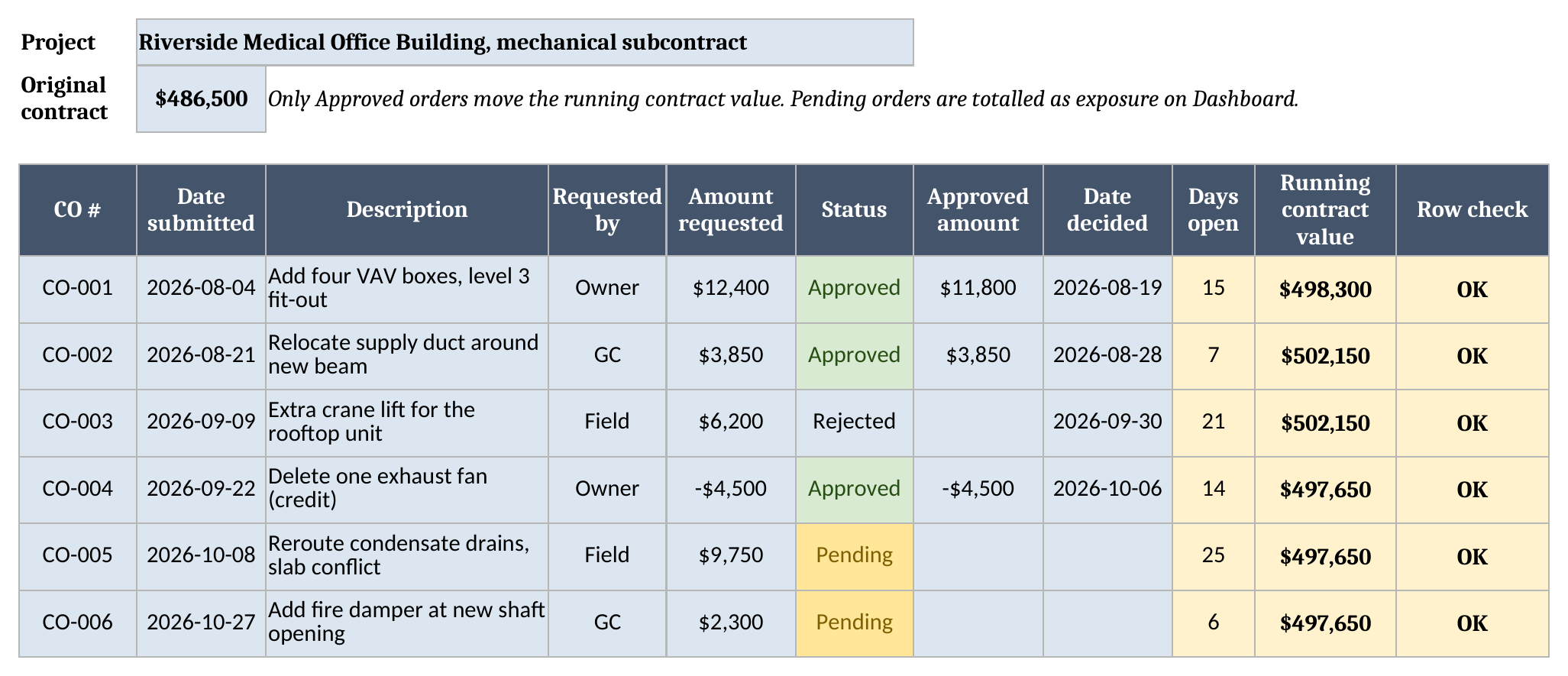
- Change Orders holds the project name and the original contract value at the top, then one row per change order. You enter the CO number, date submitted, description, who requested it, the amount requested, the status, the approved amount and the date decided. The sheet works out Days open, the Running contract value and a Row check.
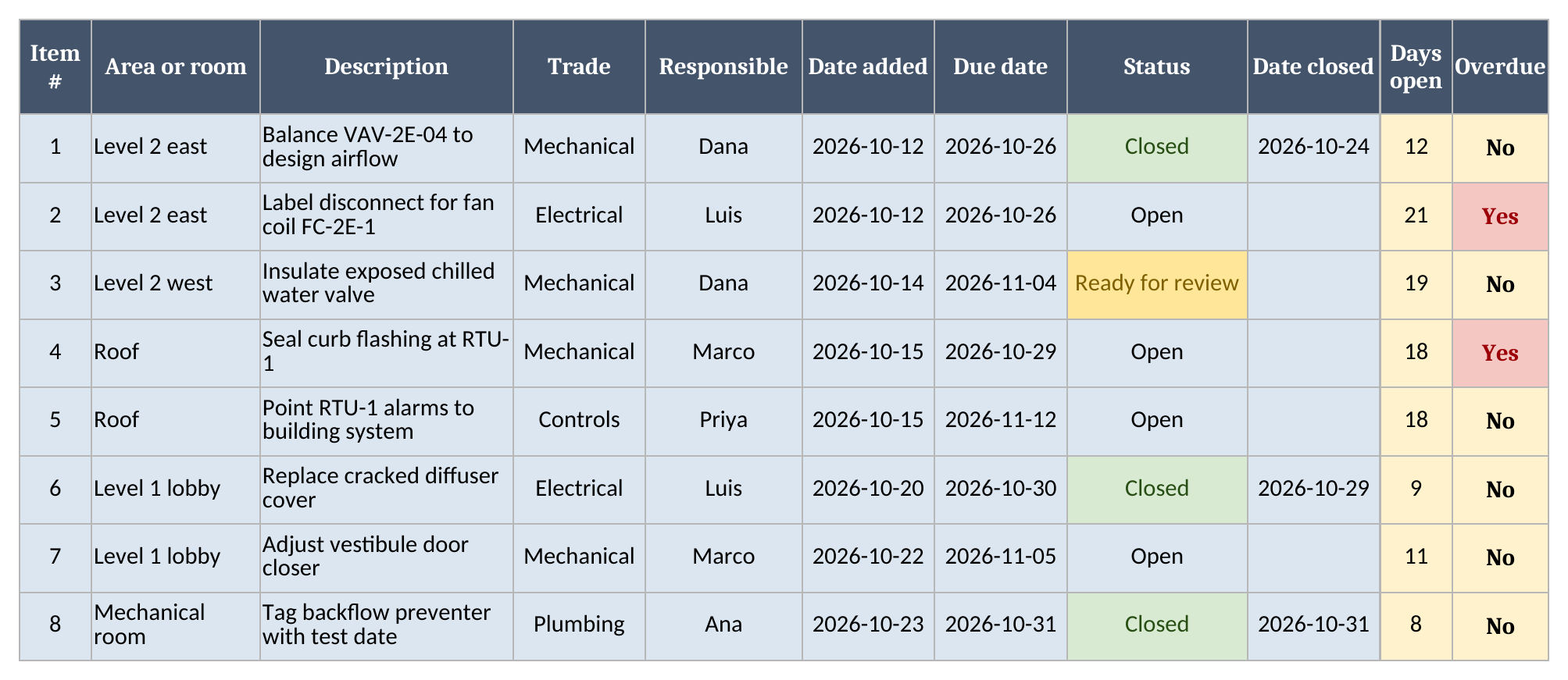
- Punch List has one row per closeout item: item number, area or room, description, trade, responsible person, date added, due date, status and date closed. Days open, an Overdue flag and a Row check are calculated.
- Dashboard holds the as-of date and the rollups for both lists, plus a Data check.
Blue cells are for typing, yellow cells calculate, and green cells hold the headline results.
How to set it up
- If your spreadsheet app opens the file read-only, turn on editing so the formulas calculate.
- On Change Orders, type the project name in B1 and the original contract value in B2.
- Clear the sample change orders and add yours. Keep each CO number unique; your own format (PCO-14, COR-007, whatever the job uses) works fine. Requested by and Status are dropdowns.
- When an order is decided, set its status and type the date decided. An Approved order also needs the approved amount, which is often lower than what was requested.
- On Punch List, clear the sample items and add your own, each with an owner and a due date.
- On Dashboard, set the as-of date. The sample date is typed in so the sample numbers stay put. Type
=TODAY()in that cell when you start using the log for real. - Fix any Row check that doesn’t read OK, then confirm Data check on Dashboard reads OK.
Why only approved orders move the contract
The main calculation is the Running contract value column. Each row shows the original contract plus every approved amount on that row and above it, so you can read the contract value at any point in the job.
Status decides what counts. An order marked Approved adds its approved amount. Pending, Rejected and Void orders add nothing, however large the request, so the running value only ever reflects signed changes.
In the sample job the original contract is $486,500. CO-001, four added VAV boxes, was requested at $12,400 and approved at $11,800, so the running value after it is $498,300. CO-003, an extra crane lift, was rejected, and the running value on its row stays at $502,150, the same as the row above. CO-004 is a credit for a deleted exhaust fan. Credits go in as negative amounts, so it brings the running value down to $497,650. The two pending orders at the bottom leave it at $497,650.
Owners and GCs often approve less than you asked for, so the approved amount has its own column and the log keeps both numbers.
Pending orders as exposure
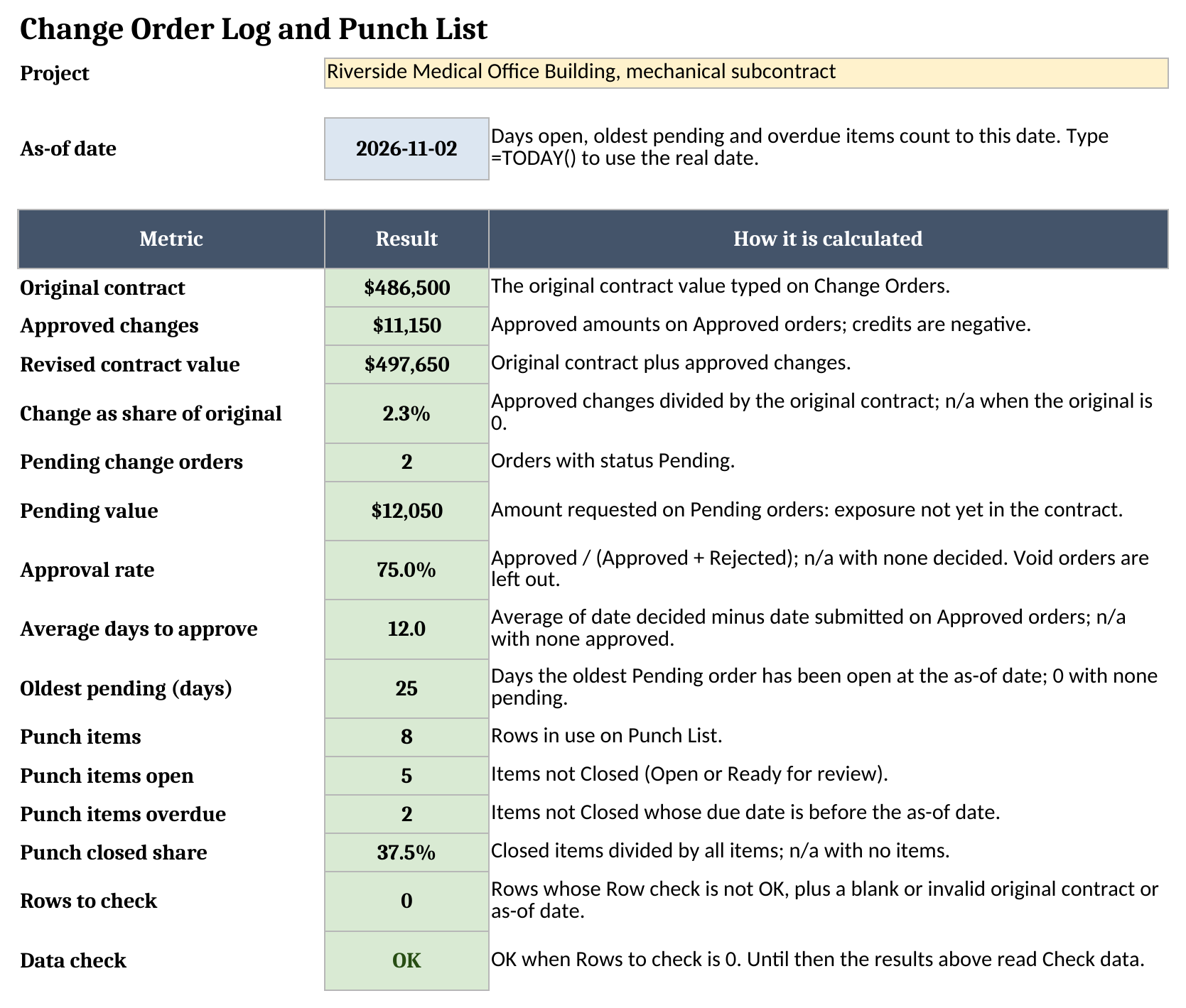
The Dashboard totals pending orders separately as Pending value: work your crews may already be doing that isn’t in the contract yet. In the sample, 2 orders are pending, worth $12,050 together.
Days open measures how long that money has been waiting. While an order is Pending, it counts from the date submitted to the as-of date. Once it is decided, it counts from submitted to decided. The Dashboard reports the oldest pending order in days. In the sample that’s CO-005, a condensate drain reroute, open for 25 days. When that number climbs, it’s time to chase a signature.
The Dashboard also shows the approval rate, which is approved orders divided by approved plus rejected (75.0% in the sample; void orders are left out), and the average days to approve (12.0 days across the three approved orders).
The punch list
The second half of the file is for closeout. Each item carries an area or room, so you can walk a floor and sort by it, plus a trade, a responsible person, a date added and a due date. Status runs Open, then Ready for review once the work is done, then Closed with a date closed once someone has checked it.
An item is overdue when it isn’t Closed and its due date is before the as-of date. Ready for review items still count as open, because nobody has signed them off.
Worked example from the sample data
The sample is a made-up mechanical subcontract on a medical office building, with six change orders and eight punch items and an as-of date of 2026-11-02. Here is what the Dashboard shows:
| Metric | Result |
|---|---|
| Original contract | $486,500 |
| Approved changes | $11,150 |
| Revised contract value | $497,650 |
| Change as share of original | 2.3% |
| Pending change orders | 2 |
| Pending value | $12,050 |
| Approval rate | 75.0% |
| Average days to approve | 12.0 |
| Oldest pending (days) | 25 |
| Punch items | 8 |
| Punch items open | 5 |
| Punch items overdue | 2 |
| Punch closed share | 37.5% |
And here is the running contract value row by row:
| CO # | Status | Running contract value |
|---|---|---|
| CO-001 | Approved | $498,300 |
| CO-002 | Approved | $502,150 |
| CO-003 | Rejected | $502,150 |
| CO-004 | Approved (credit) | $497,650 |
| CO-005 | Pending | $497,650 |
| CO-006 | Pending | $497,650 |
The last row equals the revised contract value on the Dashboard, which is a quick way to check the log. Approve CO-005 at $9,100 and the running value on its row and the one below moves up by that amount, while Pending value drops to the one order still waiting.
Every figure here comes from sample data. Your approval rate and turnaround depend on your customers and contracts, so read these as an example of what the sheet reports, not as a benchmark.
Using it in another spreadsheet app
The file is a standard .xlsx with no macros, so most spreadsheet apps can open it or import it:
- Download the workbook from the template link.
- In your spreadsheet app, choose File > Import (or File > Open) and select the file.
- If you’re asked, choose to insert it as new sheets.
- Check Change Orders and Dashboard after the import.
Formatting, dropdowns and colors can change on import, so check the results and the dropdowns before you rely on the file or share it.
How the checks keep the totals honest
A paste can get around a dropdown, so every row ends in a Row check. It reads OK, or the first problem it finds. Check ID means the row has data but no CO or item number. Duplicate ID means the number appears twice. Check inputs means something is missing or doesn’t make sense: no date submitted, an amount that isn’t a number, an Approved order with no approved amount, a decided order with no date decided, an approved amount on an order that wasn’t approved, a decision dated before submission, or a punch item due before it was added.
Rows to check on the Dashboard counts those rows, plus a blank or invalid original contract or as-of date. Until it reads 0, the Dashboard results read Check data rather than a total built on bad rows. Data check reads OK when everything lines up.
Limitations to know before relying on it
- It’s one job per file. To track several jobs, keep a copy per job.
- Change Orders and Punch List hold up to 497 change orders and 500 punch items. Formulas, dropdowns and checks stop at row 501.
- Days are calendar days, not working days.
- It doesn’t track retainage, lien waivers, billing against the revised contract, or the schedule impact of a change.
- It records decisions, but it doesn’t route approvals or store signed change order forms. Keep the signed paperwork with your contract documents. Nothing in the file is contract or legal advice.
Most teams outgrow the spreadsheet when crews find changes on site faster than the office can type them up, and the change needs to be captured while the crew is still there. Our glossary entry on change order capture explains what that looks like, and our guide to commercial mechanical contractor software compares the systems built for it. You’ll find more free tools on the free field service templates page.
Until then, grab the change order log template, type in your original contract value, and log your open changes so you know what the job is worth today.