

The tag on an extinguisher tells you about that one unit, and only when you’re standing in front of it. Our fire extinguisher inspection checklist and log keeps every unit you look after in one register, with every check logged against it, so you can see which ones are overdue before you walk the building.
Download the fire extinguisher inspection checklist and log. It’s a plain .xlsx file with no macros and no sign-up. Swap the sample units for your own, and each unit’s next check, its status and the open deficiencies recalculate.
Video walkthrough
This short captioned walkthrough goes from a row on the Inspection Log to each unit’s next check, then the intervals you set and the Dashboard counts, and ends on this page’s address.
Who this log is for
We built it for whoever keeps the extinguisher records: a facility manager with a few dozen units across one site, or a small fire protection or security company that services extinguishers for its customers. The tags stay on the units. This workbook is the record behind them, in one place you can sort and count.
The log answers four questions:
- Which extinguishers are overdue for a check, and which are coming due?
- Which check is next for each unit: monthly, maintenance, internal examination or hydrostatic test?
- What was checked, when, by whom, and did it pass?
- Which failed checks still haven’t been followed up?
What’s in the workbook
There are five sheets, in this order:
- Instructions covers setup, the color legend, the limitations, and a note that every formula, layout choice and sample figure was written from scratch for this file.
- Types has one row per extinguisher type: a short code, a description, and how often each of the four checks comes due. Monthly checks and maintenance are set in days, internal examination and hydrostatic test in years. Leave internal examination blank for a type that doesn’t have one.
- Extinguishers is the register, with one row per unit. You type the unit ID, location, type code, size and manufacture date (the Date made column). The sheet works out the last date of each check, the four next-due dates, Next due, Days to due, Next check, Status, Open deficiencies and a Row check.
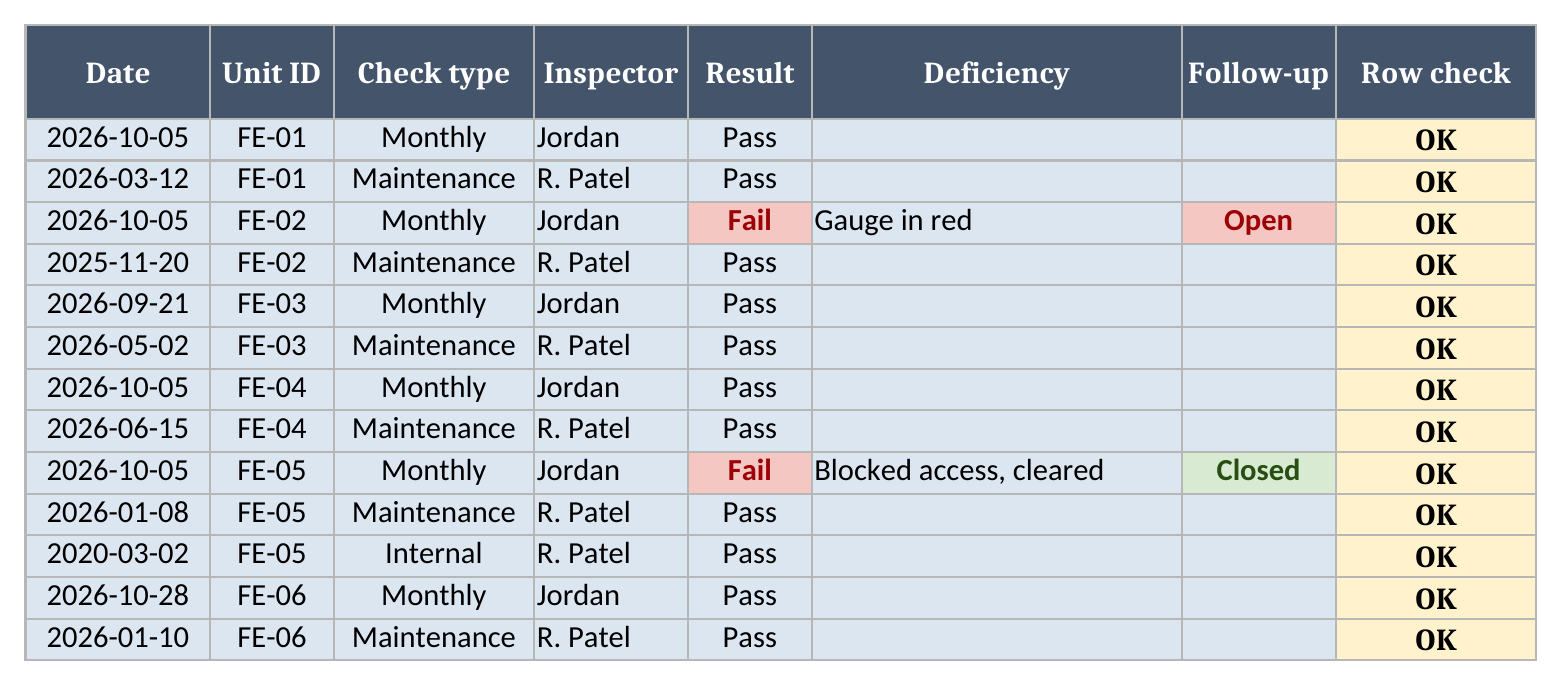
- Inspection Log gets one row per check: date, unit ID, check type, inspector, Pass or Fail, the deficiency found, and a follow-up of Open or Closed.
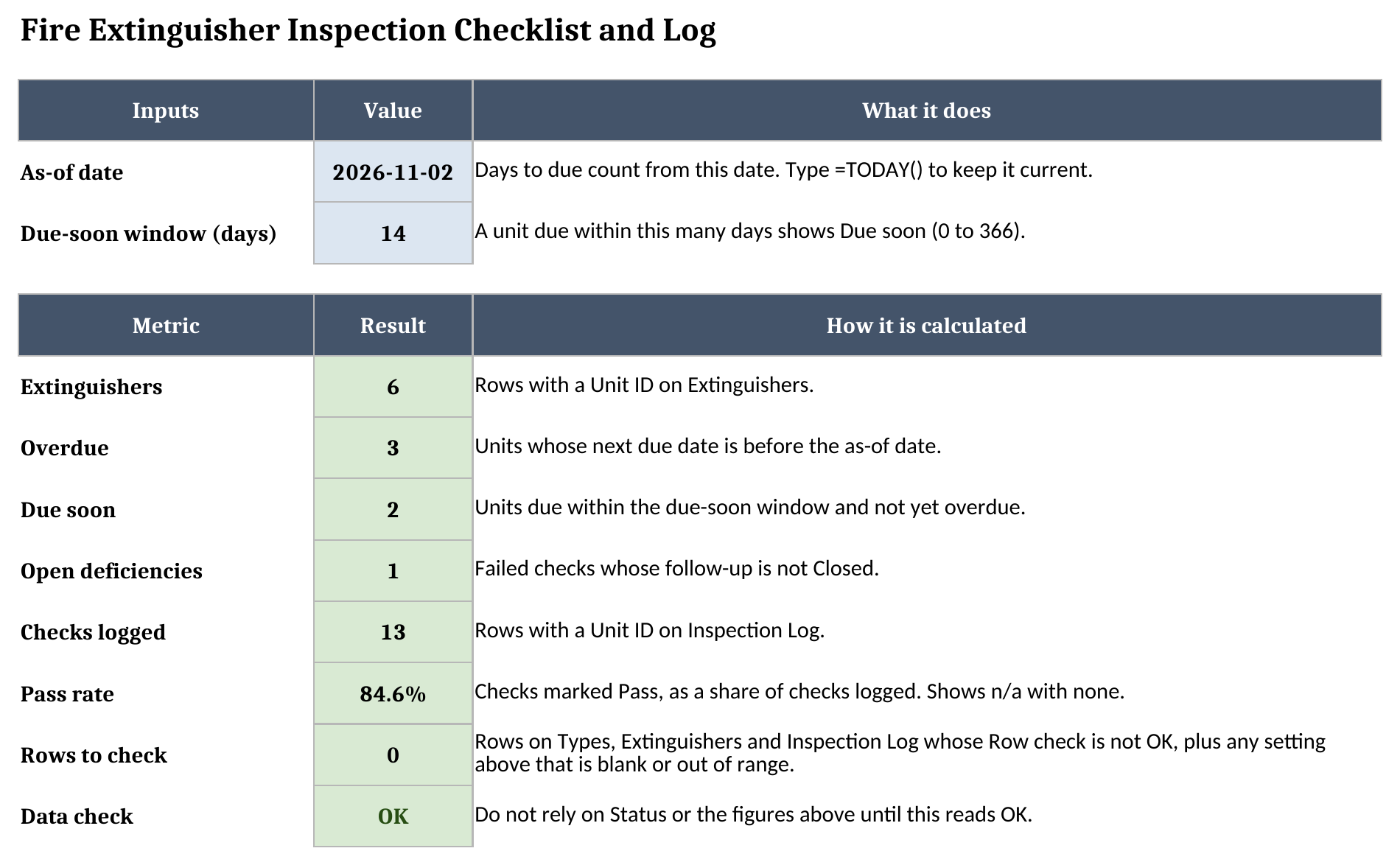
- Dashboard holds the as-of date and the due-soon window, the counts, the pass rate and a Data check.
Blue cells are for typing, yellow cells calculate, and green cells hold the headline results.
How to set it up
- If your spreadsheet app opens the file read-only, turn on editing so the formulas calculate.
- On Dashboard, set the as-of date and the due-soon window. The sample window is 14 days. The as-of date is typed in so the sample numbers stay put. Once you start using the log for real, type
=TODAY()in that cell. - On Types, enter your own intervals. The sample values are only there to show how the sheet works. Set yours from the edition of NFPA 10 your fire authority enforces and the manufacturer’s instructions. We don’t restate the standard here, and the workbook doesn’t either.
- On Extinguishers, replace the sample rows with your units. Keep each unit ID unique, because the log uses it as the key. Tag numbers, asset numbers and site codes all work. Pick the type from the dropdown, which reads your live Types list.
- Enter each unit’s manufacture date. Until a check of a given type is logged, that check’s next-due date counts from it, so you can start the log without digging up years of old tags.
- On Inspection Log, clear the sample rows and log your most recent check of each type for each unit. Older history can stay on the paper tags.
- Fix every Row check that isn’t OK, then confirm Data check on Dashboard reads OK.

How the next check is worked out
You never type a due date in this file. You log the checks, and the Extinguishers sheet does the rest.
For each unit and each check type, the sheet looks for the latest date on Inspection Log. If there isn’t one, it uses the manufacture date. It then adds the interval set for that unit’s type: days for monthly checks and maintenance, years for internal examination and hydrostatic test. That gives four next-due dates per unit. The earliest of the four is Next due, and Next check names the check that falls due on that date. When two checks fall due the same day, Next check lists both, joined with a plus sign, so neither one gets missed.
Days to due counts from the as-of date on Dashboard. Status reads Overdue when that number is below zero, Due soon when it is inside the due-soon window, and OK otherwise.
Each check type moves only its own date. Logging a monthly check doesn’t touch the maintenance date, and a hydrostatic test doesn’t reset the monthly count. A Fail still counts as a check that was done, so it moves the date too. The failure itself is tracked separately as a deficiency.
Take FE-05, the office hallway unit in the sample. It had its monthly check on 2026-10-05 and its maintenance on 2026-01-08, so neither of those is close. But its type has a hydrostatic interval, there’s no hydrostatic test on the log, and it was manufactured on 2014-03-01. Counting from that date puts its hydrostatic test in the past: Days to due reads -246, and Next check reads Hydrostatic. FE-01 is in the same spot for its internal examination, at -566 days.
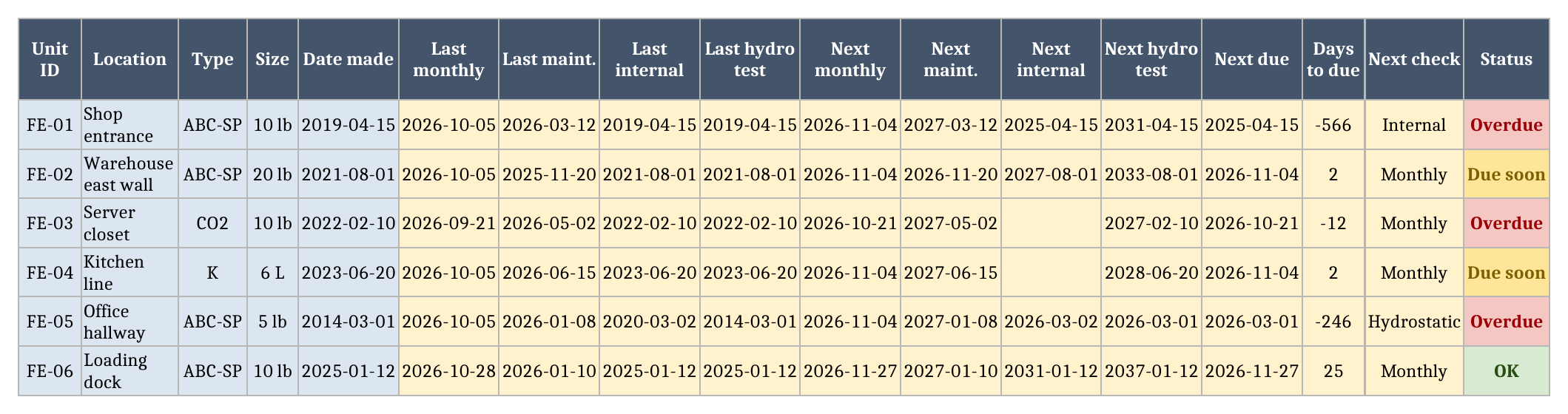
When FE-05 gets its hydrostatic test, add one row to the log with the date and check type Hydrostatic. Its hydrostatic due date moves forward by the interval on Types, Next check moves to whichever check is now earliest, and the Dashboard’s overdue count drops by one if nothing else is past due.
Deficiencies stay open until someone closes them
Every check gets a result of Pass or Fail. A Fail is a deficiency: describe what was found in the Deficiency column and set Follow-up to Open. The unit’s Open deficiencies count and the Dashboard total both include it until Follow-up is changed to Closed.
If a check is marked Fail and Follow-up is left blank, Row check reads Set follow-up, so a failure can’t be logged without saying whether it’s still open.
In the sample, FE-02’s monthly check on 2026-10-05 failed with the gauge in the red, and its follow-up is still Open. FE-05 failed the same day for blocked access, which was cleared, so its follow-up is Closed and it no longer counts.
Worked example from the sample data
The sample register has 6 extinguishers and 13 logged checks, with an as-of date of 2026-11-02. All of it is made up. Here’s where each unit stands:
| Unit | Location | Days to due | Next check | Status | Open deficiencies |
|---|---|---|---|---|---|
| FE-01 | Shop entrance | -566 | Internal | Overdue | 0 |
| FE-02 | Warehouse east wall | 2 | Monthly | Due soon | 1 |
| FE-03 | Server closet | -12 | Monthly | Overdue | 0 |
| FE-04 | Kitchen line | 2 | Monthly | Due soon | 0 |
| FE-05 | Office hallway | -246 | Hydrostatic | Overdue | 0 |
| FE-06 | Loading dock | 25 | Monthly | OK | 0 |
FE-02 reads Due soon on its monthly check, and it also has an open deficiency from last month. Status covers the schedule only, so check Open deficiencies too before you call a unit ready.
And here’s what the Dashboard shows:
| Metric | Result |
|---|---|
| Extinguishers | 6 |
| Overdue | 3 |
| Due soon | 2 |
| Open deficiencies | 1 |
| Checks logged | 13 |
| Pass rate | 84.6% |
| Rows to check | 0 |
The pass rate is the share of logged checks marked Pass. It counts the closed FE-05 failure as well as the open one, because it measures what the checks found. Open deficiencies is the figure for what is still outstanding.
The record behind the inspection tag
An inspection tag and an inspection log do different jobs. The tag hangs on the unit and shows its own history to whoever is standing there. The log keeps every unit’s checks together, so you can see what is coming due across a whole building or a whole customer list. This workbook is the log. It doesn’t print tags. Fill in the tag the way you already do, then add the same check to the Inspection Log, where it counts toward the schedule, the deficiencies and the totals.
For a company that inspects extinguishers at customer sites, the same idea scales up to inspection forms filled in on a phone at each site. Our glossary entry on field inspection forms explains how those work. Extinguisher work often sits next to alarm, access control and camera work, which our page on security systems covers.
Limitations to know before relying on it
- It doesn’t tell you which checks your extinguishers need or how often. The intervals are the ones you enter on Types.
- A row with a blank, shared or unlisted ID or type code, a missing or out-of-range value, or a check dated before the unit’s manufacture date shows a warning in Row check. Status on Extinguishers and every Dashboard figure except Extinguishers then read Check data until Data check reads OK.
- Each type has one interval per check type. If two units of the same type need different intervals, give them separate type codes.
- A logged check moves only its own check type. If a test you log should also restart another check, log that check too.
- The log holds up to 20 types, 300 extinguishers and 2,000 checks. Formulas and dropdowns stop at row 21 on Types, row 301 on Extinguishers and row 2001 on Inspection Log.
- It’s one file. It won’t send reminders, capture photos or signatures, or sync between technicians.
If you service extinguishers at many customer sites, have several technicians logging checks at once, or need photos and signatures on the spot, our guide to software for security and fire protection companies covers what to look for.
Until then, browse the rest of our free field service templates, or grab the fire extinguisher inspection checklist and log, add your units, and log the next check to watch the dates move.