

A panel schedule is the page an electrician reads before touching a panel: which breaker feeds what, how big it is, and how much load sits on each phase. Our electrical panel schedule template keeps that record for one 3-phase panelboard, works out the load on phases A, B and C as you type, and prints a directory card for the panel door.
Download the electrical panel schedule template. It’s a plain .xlsx file with no macros and no sign-up. Open it in your spreadsheet app, replace the sample panel with your own, and the phase totals and the directory update as you go.
Video walkthrough
This short captioned walkthrough follows the sample panel from the circuit list to the door card and the phase totals.
Who this template is for
We built it for electrical contractors and service techs who add circuits to existing panels, and for facilities teams who inherit panels with faded or missing directories. It also helps anyone who has to answer the usual questions before adding a load: what is already in the panel, which spaces are free, and which phase is carrying the most.
The workbook covers one panel. It answers three questions:
- What does each breaker feed, and what size is it?
- How much connected load is on phase A, phase B and phase C?
- How many spare breakers and empty spaces are left?
It records the loads you enter and does no load calculation or sizing. Breaker sizing, feeder sizing and code questions belong to the electrician of record.
What’s in the workbook
There are four sheets, in this order:
- Instructions covers setup, the color legend and the limitations. It also states that the formulas, layout and sample figures were written from scratch for this file.
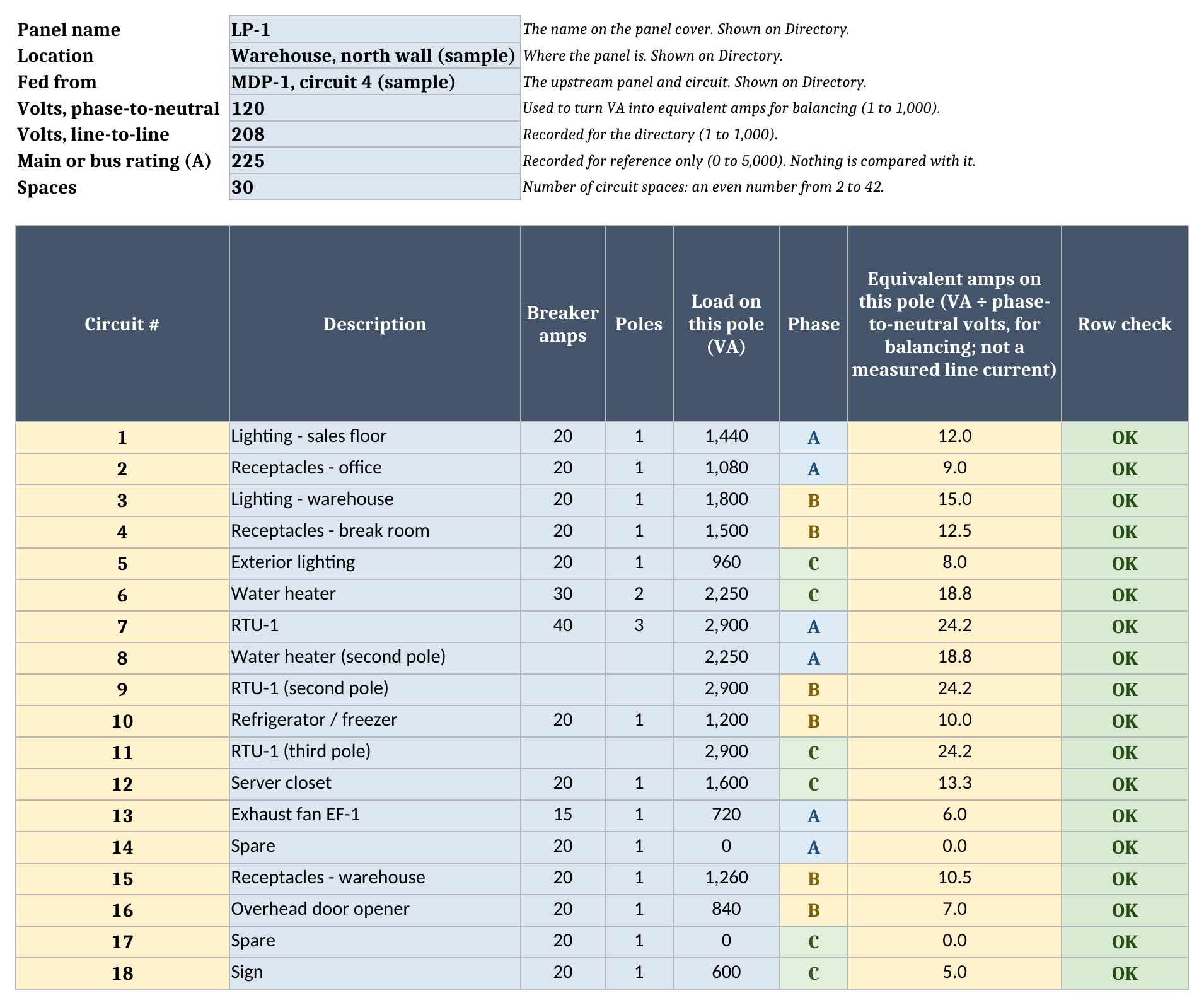
- Panel is the schedule. The header holds the panel name, location, what feeds it, the phase-to-neutral and line-to-line volts, the main or bus rating and the number of spaces. Below that is one row per space for circuits 1 to 42: description, breaker amps, poles and the load on that pole in VA. Phase, equivalent amps and a Row check are calculated.
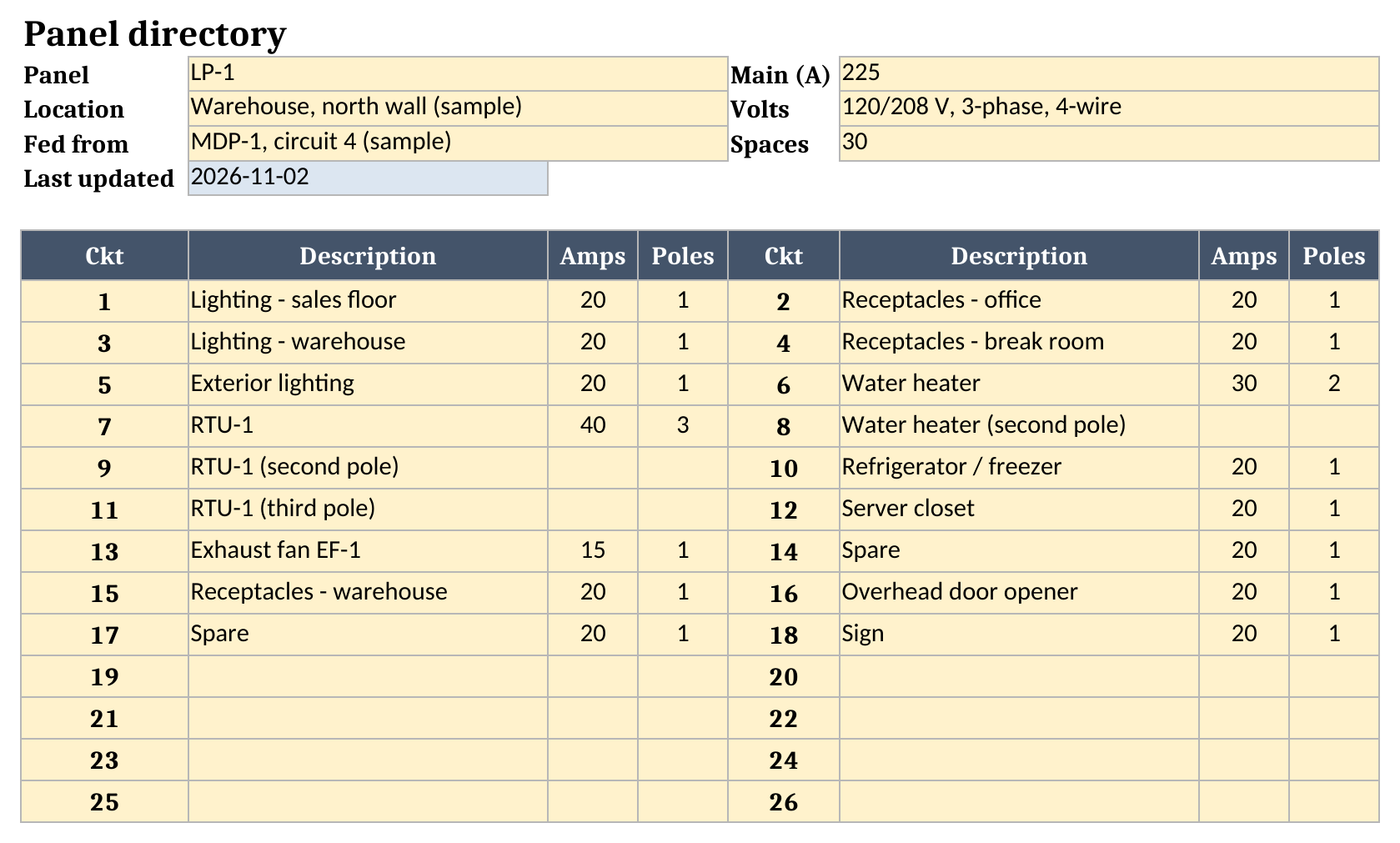
- Directory is the door card. Odd circuits sit on the left, even on the right, each with its description, breaker amps and poles, read from Panel by circuit number.
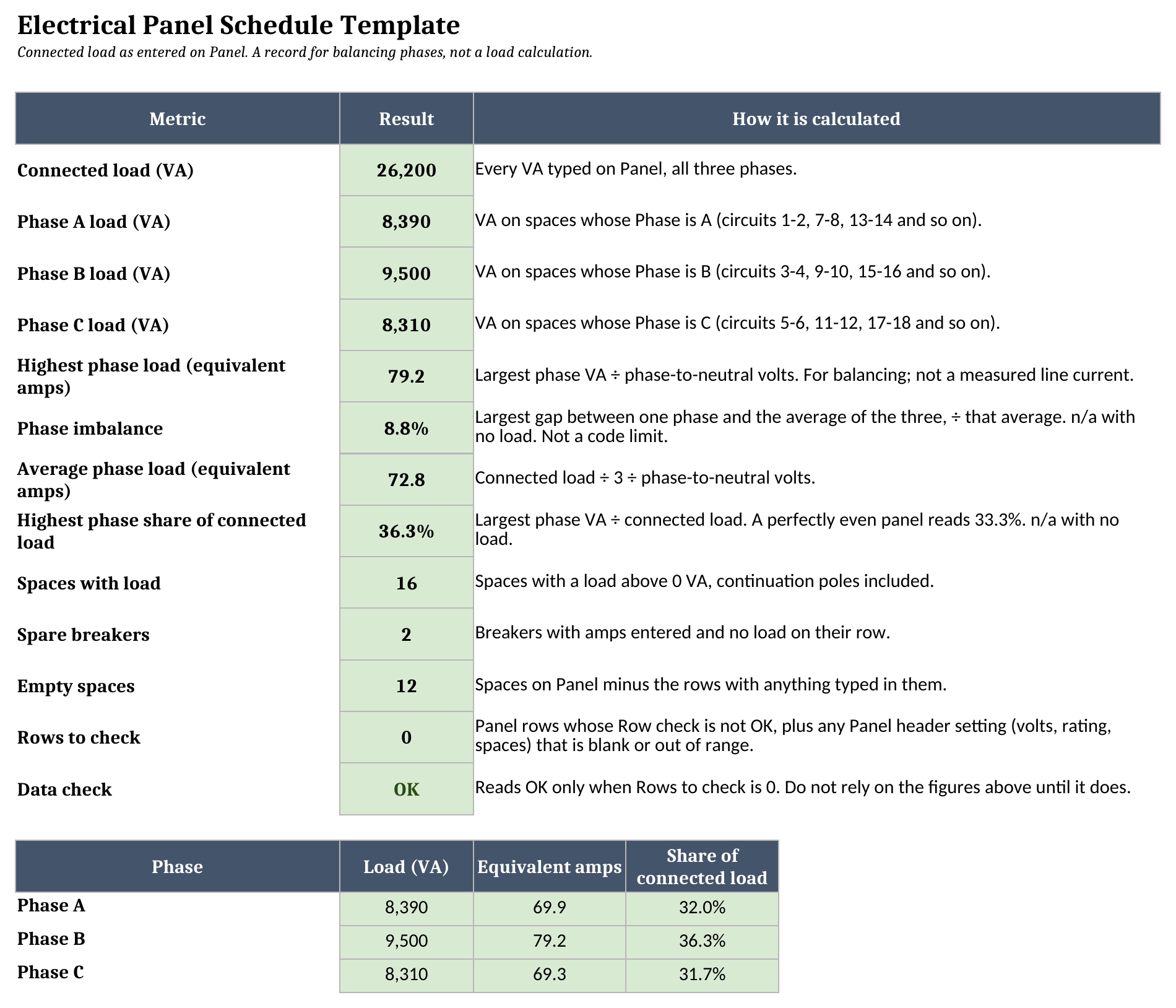
- Dashboard shows connected load, the load on each phase, the highest phase in equivalent amps, the phase imbalance, spaces with load, spare breakers, empty spaces, and a Rows to check count.
Blue cells are for typing, yellow cells calculate, and green cells are the headline results.
How to set it up
- If your spreadsheet app opens the file read-only, turn on editing so the formulas calculate.
- Fill in the Panel header. Spaces must be an even number from 2 to 42. Phase-to-neutral volts (120 on a 120/208 V panel) is the figure used to turn VA into equivalent amps.
- Clear the sample circuits in columns B to E. Leave the Circuit # column alone, because the phase of each row depends on it.
- For each breaker, type its amps and poles on the row of its first circuit, then the load on that pole in VA.
- For a 2-pole or 3-pole breaker, fill in the continuation rows. A 2-pole breaker on circuit 6 also uses circuit 8, and a 3-pole breaker on circuit 7 uses 9 and 11. On those rows, leave Breaker amps and Poles blank, add a description such as “Water heater (second pole)”, and type the load on that pole.
- Give a spare breaker its amps, its poles and a load of 0. Leave unused spaces blank.
- Clear every Row check that isn’t OK, then confirm Rows to check on Dashboard reads 0.
How each pole lands on a phase
The Phase column does most of the work. On a 120/208 V, 3-phase, 4-wire panelboard with odd circuits on the left and even on the right, the phases follow the circuit numbers in pairs: circuits 1 and 2 are on phase A, 3 and 4 on B, 5 and 6 on C, then 7 and 8 back on A, and so on down the panel. The workbook reads the circuit number on each row and fills in the phase for you.
That’s why every pole of a multi-pole breaker gets its own row. In the sample, the water heater’s 2-pole breaker sits on circuit 6 and takes circuit 8 as its second pole, so one pole lands on phase C and the other on phase A. RTU-1’s 3-pole breaker on circuit 7 takes circuits 9 and 11, one pole on each phase. Type the load on each row and Dashboard puts each pole’s VA on the right phase.
Moving a circuit works the same way. Move the server closet from circuit 12 to circuit 14 and its 1,600 VA leaves phase C for phase A. Every total and the imbalance change with it, so you can try a move on paper before anyone opens the panel.
The amps figures are equivalent amps: VA divided by the phase-to-neutral volts. They are a way to compare phases, not a measured line current. A 208 V two-pole or three-pole load draws a different real current, so don’t read them as clamp-meter numbers.
Why some results read Check data
A schedule with a mistake in it can look balanced when it isn’t, so the workbook holds the totals back until the rows check out.
Each row on Panel has a Row check. Check inputs means a breaker size outside 0 to 1,200 amps, poles that aren’t 1, 2 or 3, poles with no breaker, a breaker with no poles, or a load that isn’t a number from 0 to 100,000 VA. Check poles means a continuation row with no 2-pole or 3-pole breaker above it, a multi-pole breaker whose next space already holds its own breaker, or a breaker whose poles run past the last space. Beyond spaces means a row is filled in below the number of spaces in the header. Check ID means the circuit number on the row was changed.
Dashboard adds those rows to any header setting that is blank or out of range, such as the volts or the number of spaces, and shows the result as Rows to check. While that count is above zero, every figure on Dashboard reads Check data.
Worked example from the sample data
The sample is a made-up panel, LP-1, serving a small retail store and warehouse: 30 spaces, 225 A main, 120/208 V. It has eighteen circuits in use, including a 2-pole water heater and a 3-pole rooftop unit. Here is what Dashboard shows:
| Result | Sample panel |
|---|---|
| Connected load | 26,200 VA |
| Phase A load | 8,390 VA |
| Phase B load | 9,500 VA |
| Phase C load | 8,310 VA |
| Highest phase load (equivalent amps) | 79.2 A |
| Average phase load (equivalent amps) | 72.8 A |
| Phase imbalance | 8.8% |
| Highest phase share of connected load | 36.3% |
| Spaces with load | 16 |
| Spare breakers | 2 |
| Empty spaces | 12 |
| Rows to check | 0 |
Phase B carries the most, at 9,500 VA or 79.2 A in equivalent amps, against 69.9 A on phase A and 69.3 A on phase C. The imbalance of 8.8% is phase B’s distance from the three-phase average, as a share of that average. Use it to compare one version of the panel with another; it sets no pass mark. If you were adding a 120 V circuit to this panel, phase A or phase C would be the place to look first.
The two spares are circuits 14 and 17. Every space from 19 to 30 is empty, which is where the 12 empty spaces come from.
The sample data is made up, so use these figures to learn how the sheet reports a panel, and don’t read them as a benchmark for a real one.
Printing the directory
Directory reads the panel name, location, feed, volts, main rating and spaces from Panel, then lists every space up to the number in the header. Type the date in Last updated, print the sheet, and tape it inside the panel door. When a circuit changes, update Panel and print the card again. Directory never needs editing by hand.
Limitations to know before relying on it
- It records connected load as entered. It applies no demand factors and compares nothing against the main or bus rating, which sits on Panel for reference only.
- Equivalent amps are VA divided by the phase-to-neutral volts, for balancing. They are not a measured line current.
- The layout covers one 120/208 V, 3-phase, 4-wire panelboard with odd circuits on the left and even on the right. Single-phase 120/240 V panels and 277/480 V panels aren’t modeled.
- The sheet holds up to 42 spaces. Use one copy of the workbook per panel.
- It makes no code statement of any kind. Sizing and code questions go to the electrician of record.
Where this fits
A panel schedule is one of the records an electrical service company keeps for every site it works on. Once you’re tracking panels, jobs and service history across many customers, it’s worth reading our guide to the best software for electrical service companies and our overview of field service software for electrical contractors. The rest of our free spreadsheets are on the field service templates page.
Until then, grab the electrical panel schedule template, enter your panel, and print a fresh directory for the door.